Recently in Aperture 3

Aperture RAW Compatibility Update 3.9 Notes and Workflow

| No Comments

Apple released Digital Camera RAW Compatibility Update 3.9 that provides support for 11 new cameras, including the Canon S100, Nikon 1, Sony NEX 5N, and the new Olympus PENs. It's available via Software Update on your Mac.

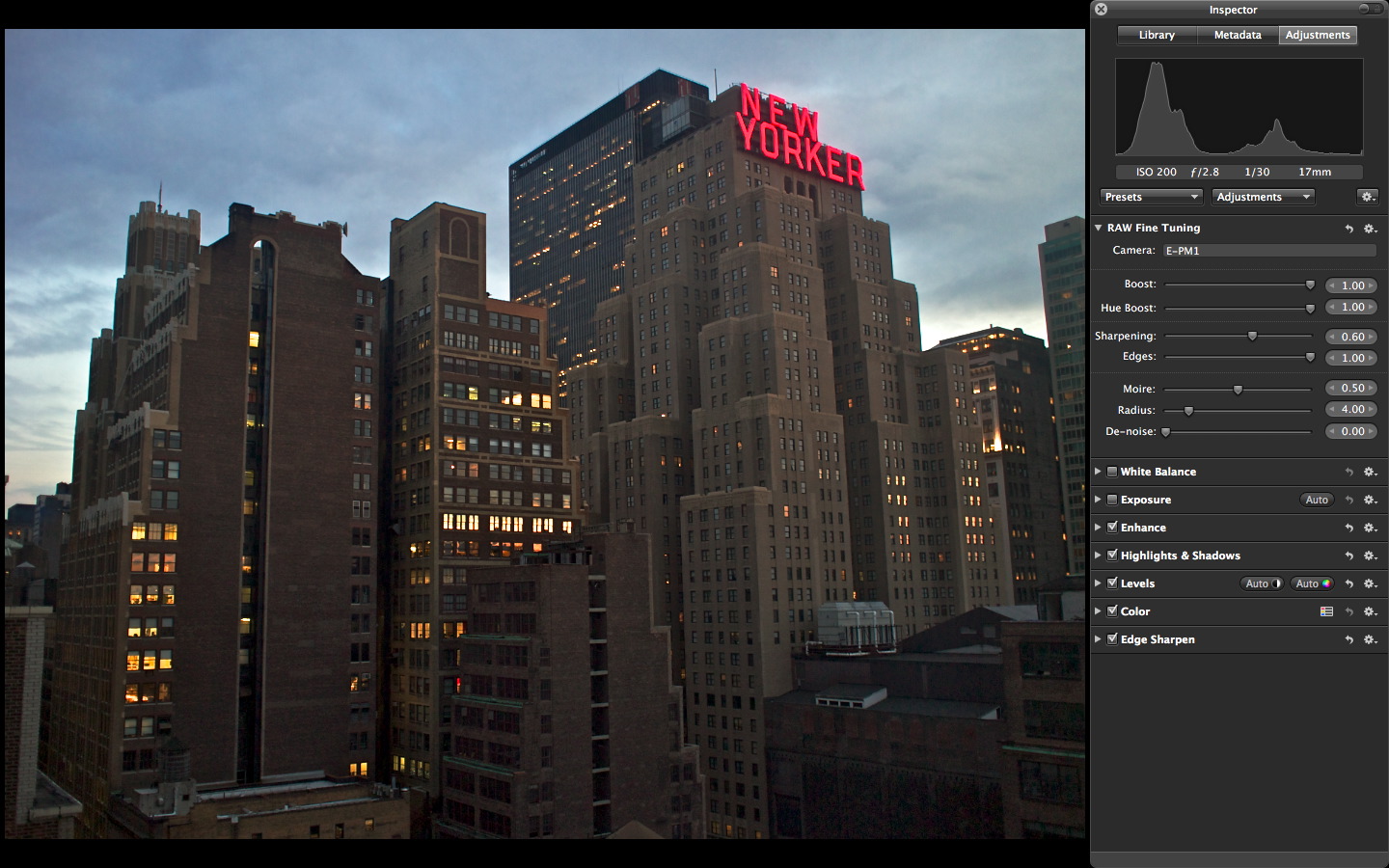
New Yorker with Olympus E-PM1 New Yorker hotel shot with an Olympus E-PM3 (Mini) in Raw and processed in Aperture 3. Click on image for larger size. Photo by Derrick Story.

This means that Raw files from the following cameras can now be processed in Aperture 3, iPhoto 9, and Preview for Mac OS X Lion.

  • Canon PowerShot S100
  • Nikon 1 J1
  • Nikon 1 V1
  • Nikon COOLPIX P7100
  • Olympus PEN E-PL1s
  • Olympus PEN E-PL3
  • Olympus PEN E-PM1
  • Panasonic LUMIX DMC-FZ150
  • Sony Alpha NEX-5N
  • Sony Alpha SLT-A65
  • Sony Alpha SLT-A77

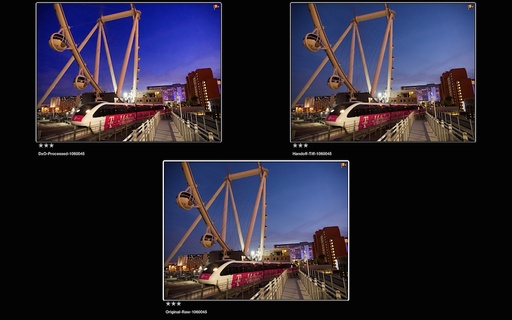
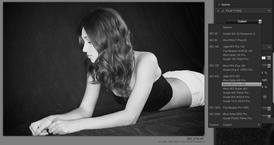
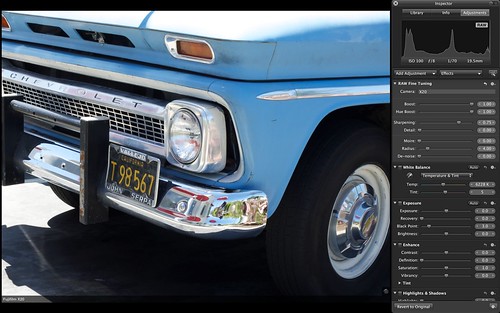
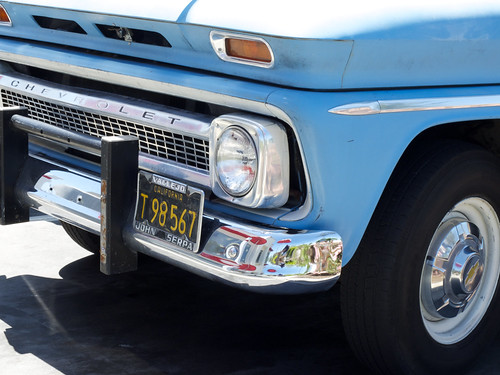
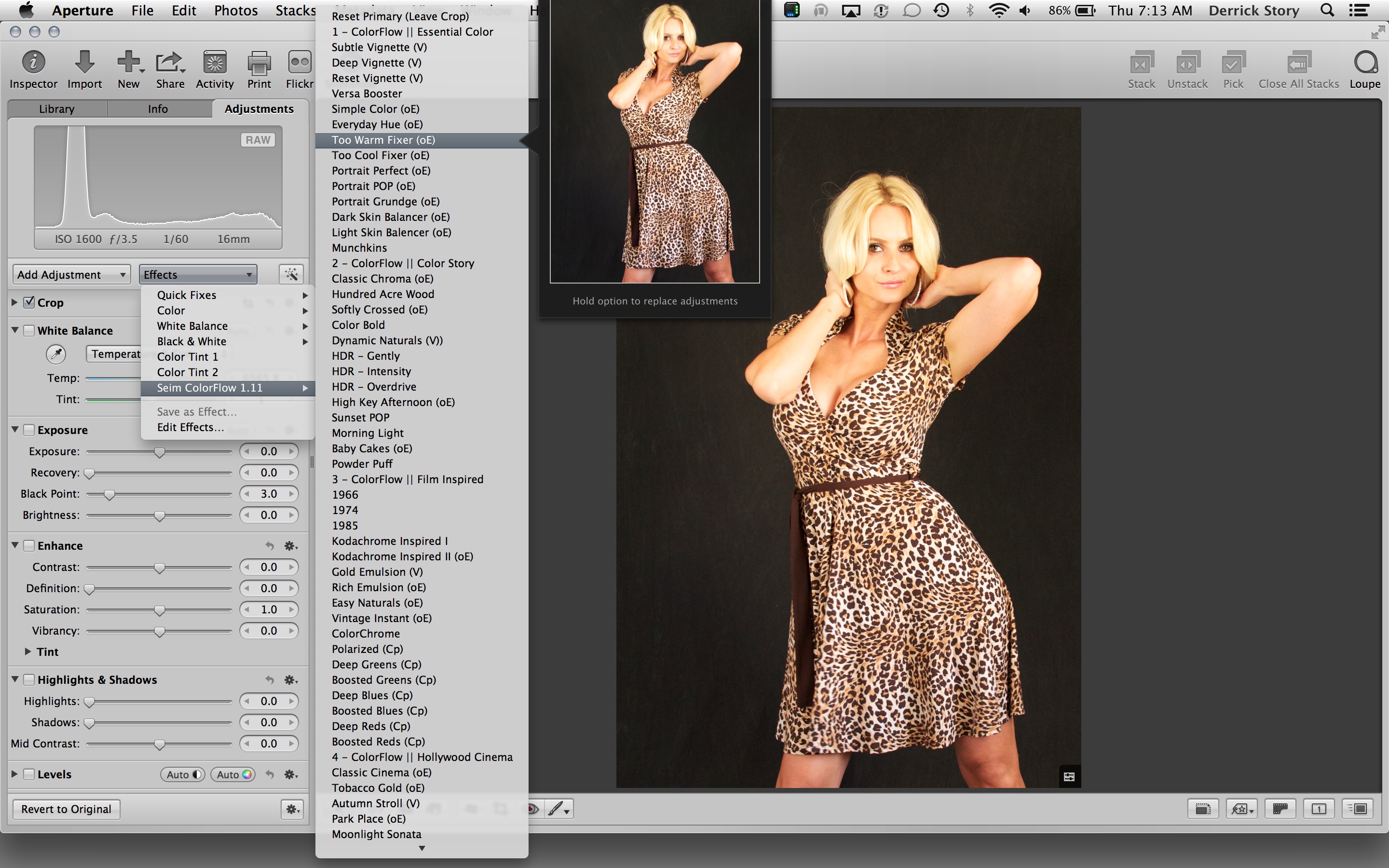
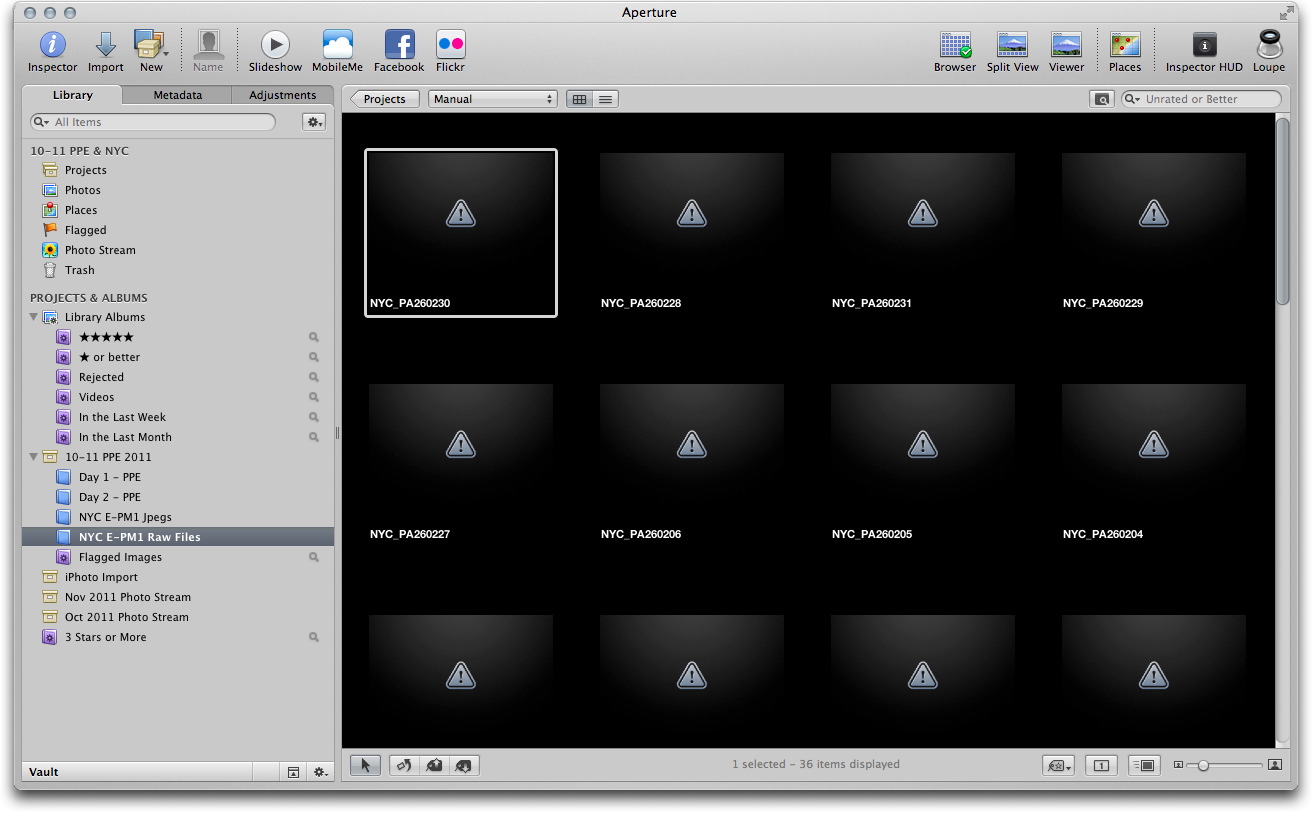
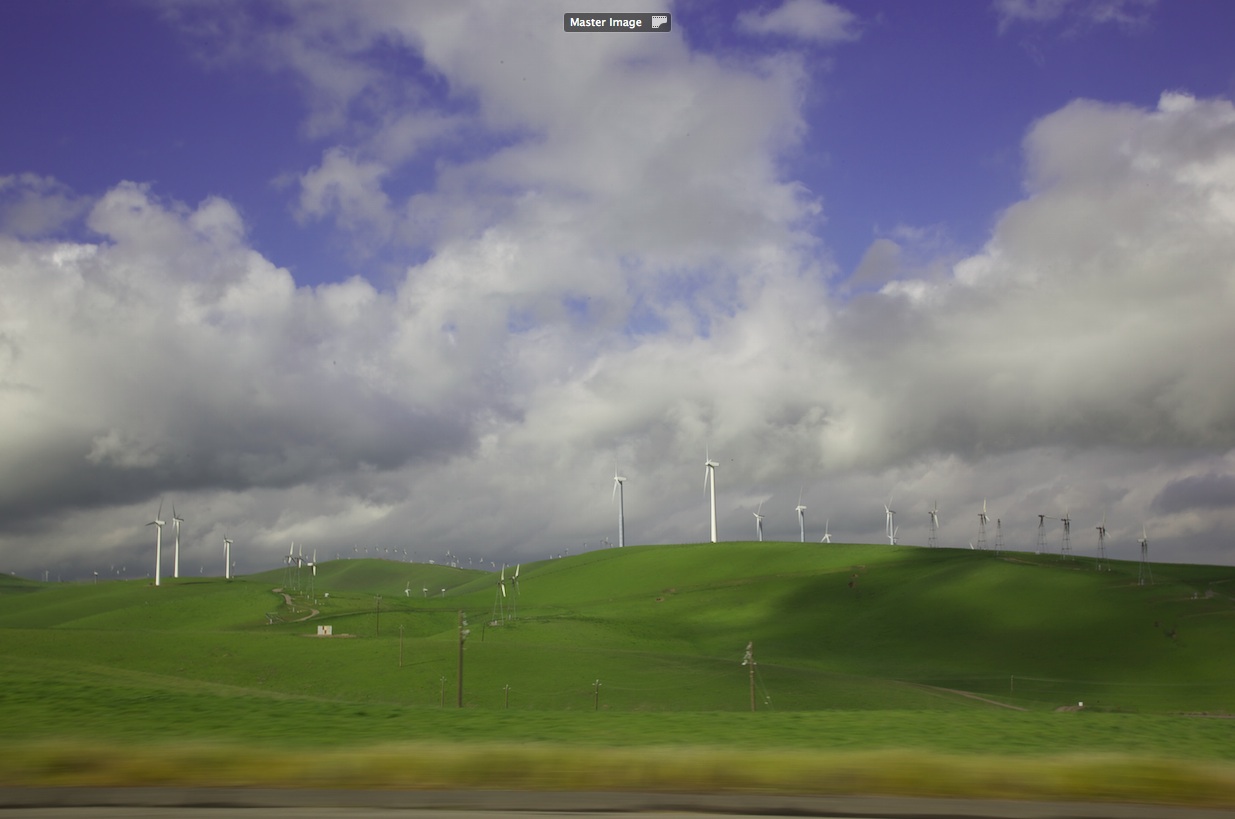
I've been shooting Raw files with my Olympus PEN Mini, so I now can convert those images from this in Aperture:

unprocessed_raw.jpg

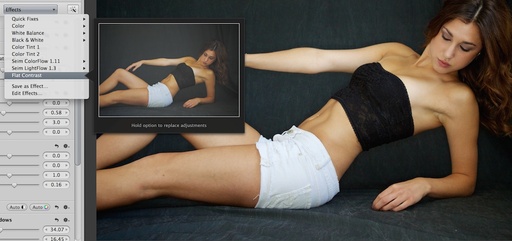
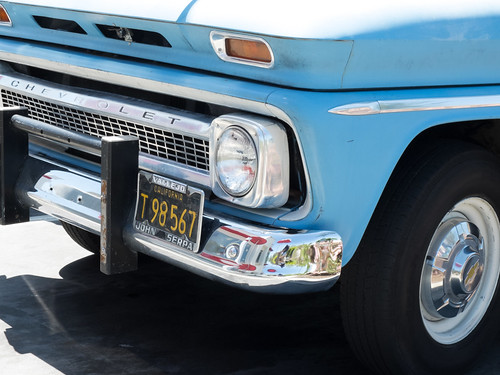
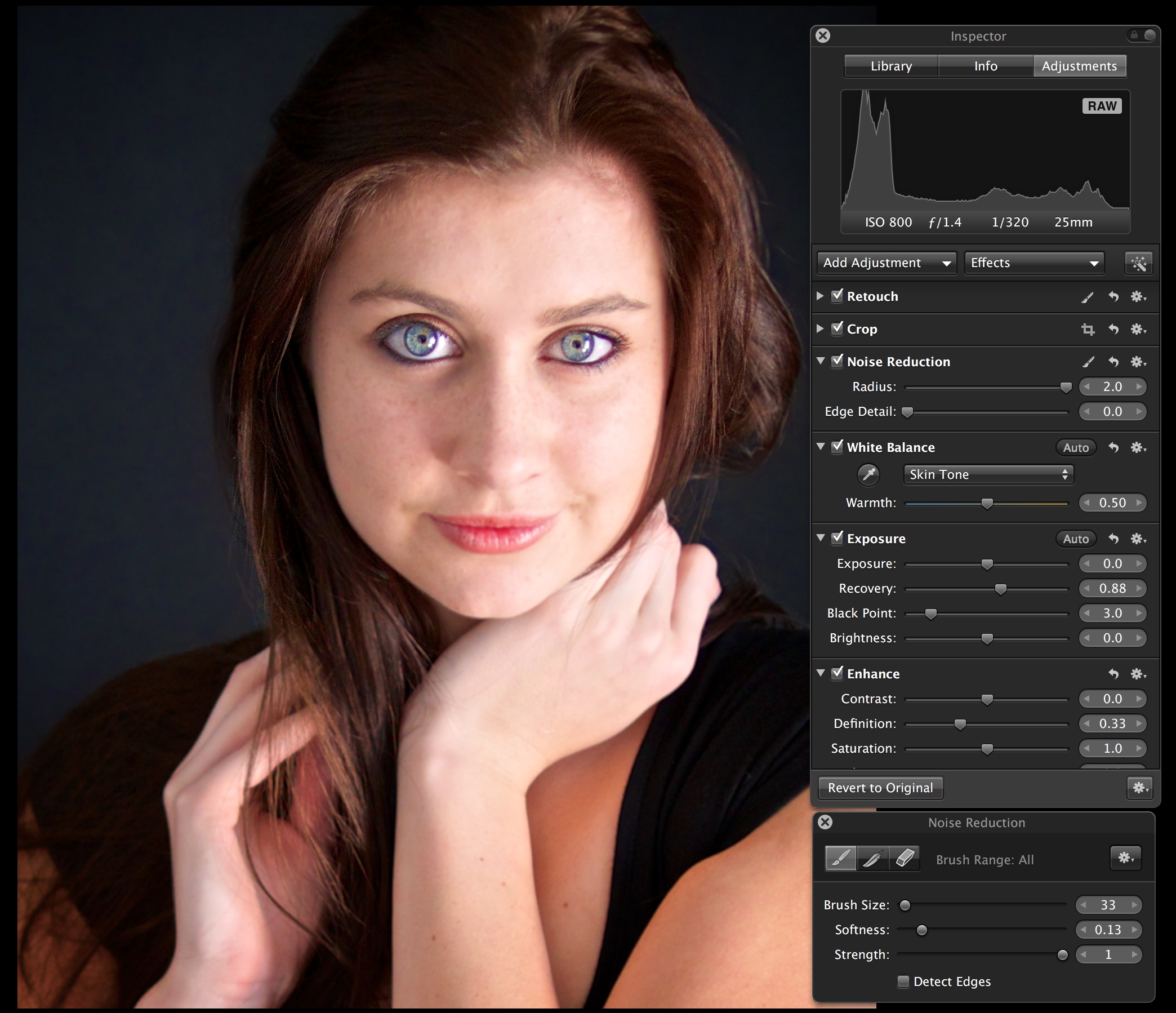
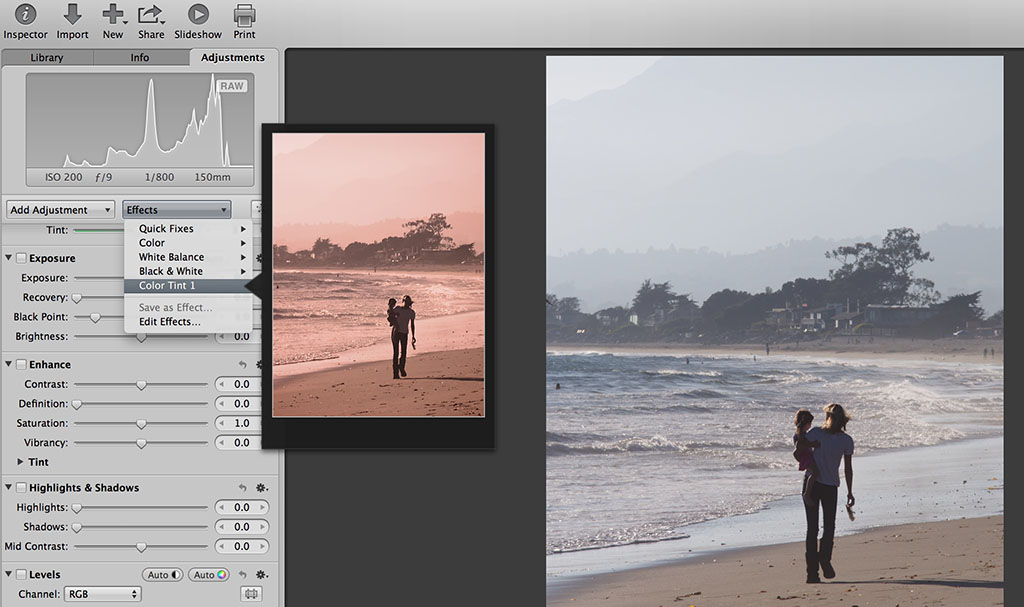
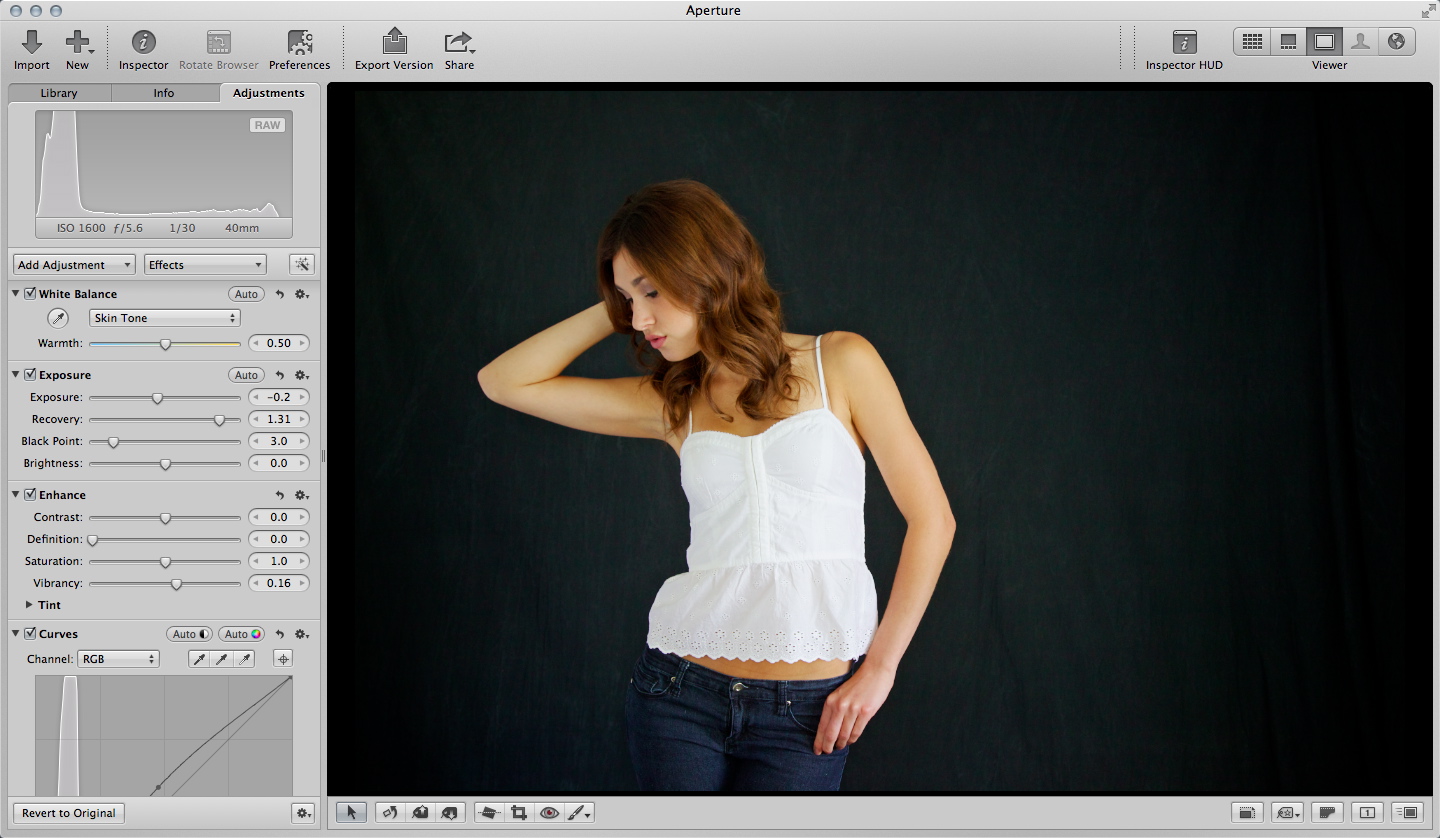
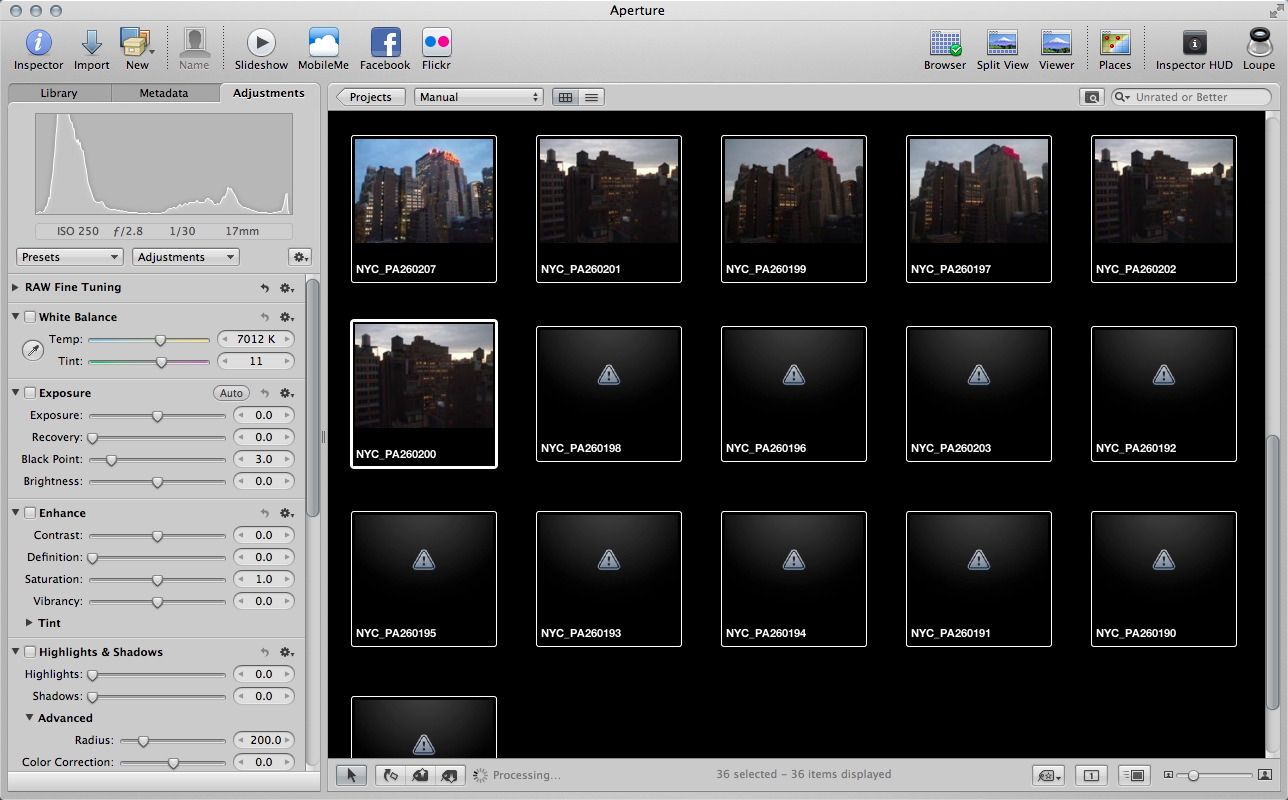
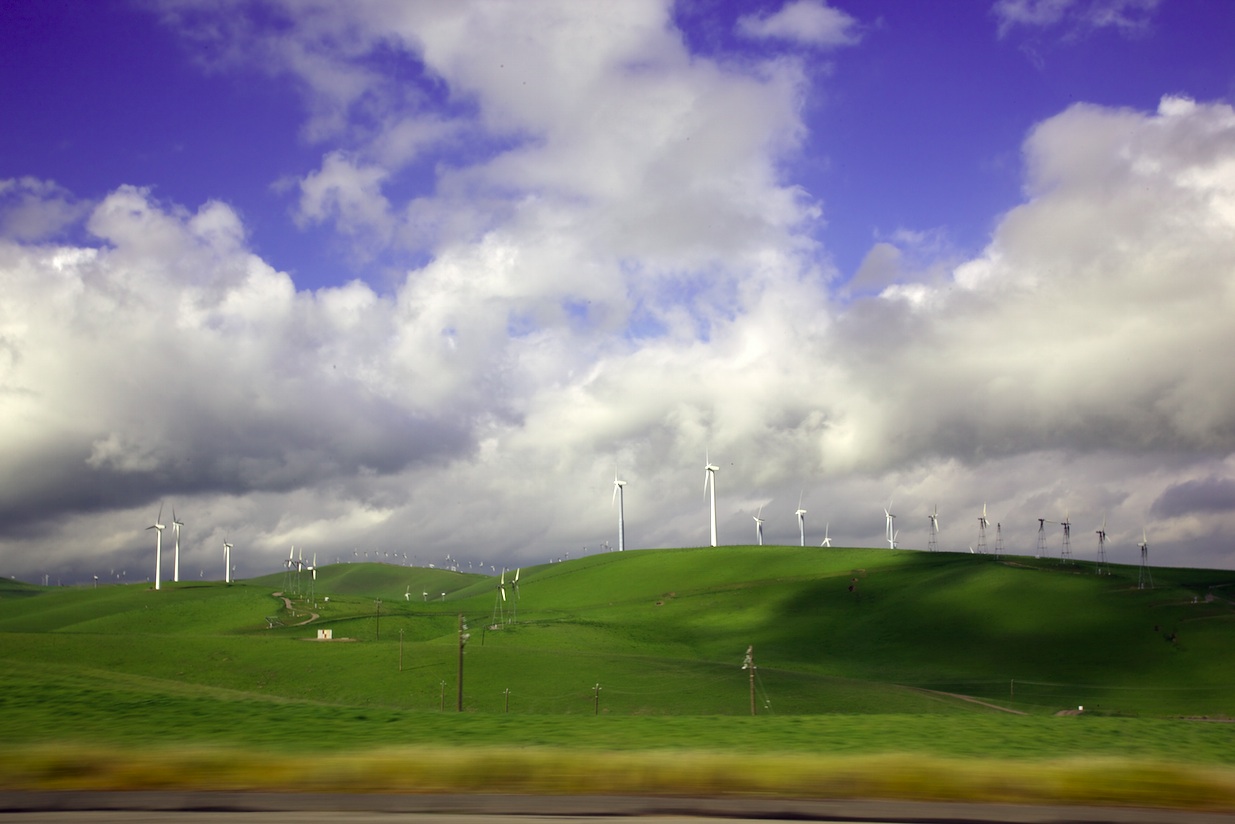
To fully processed images that look like this. All I have to do is open the Adjustments tab, and click on the thumbnail. Aperture will automatically process the Raw file for you, once you have the update installed.

processed_raw.jpg

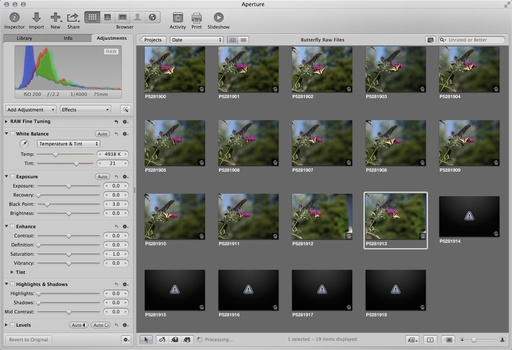
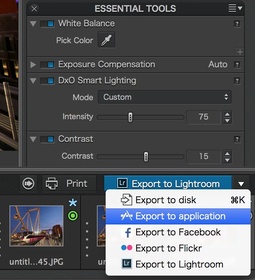
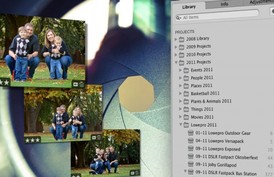
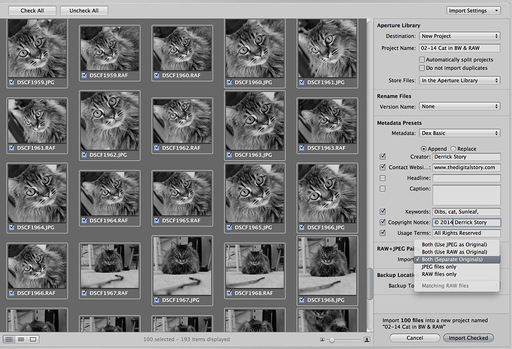
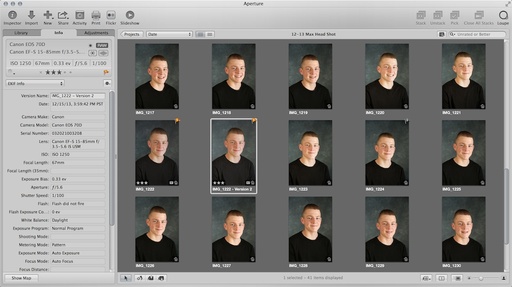
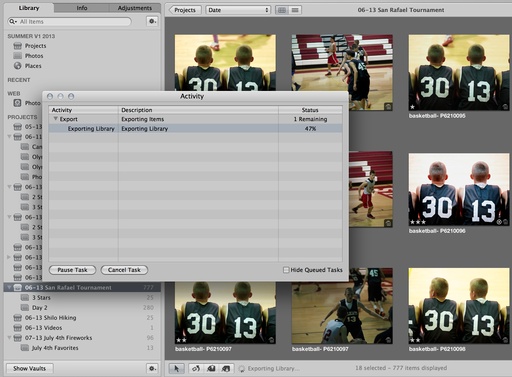
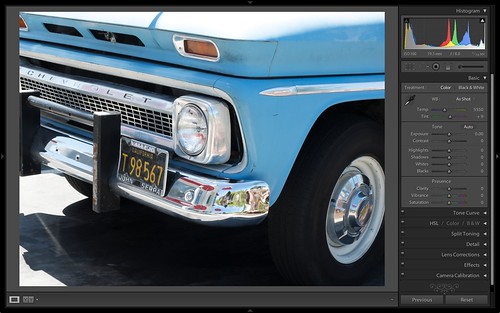
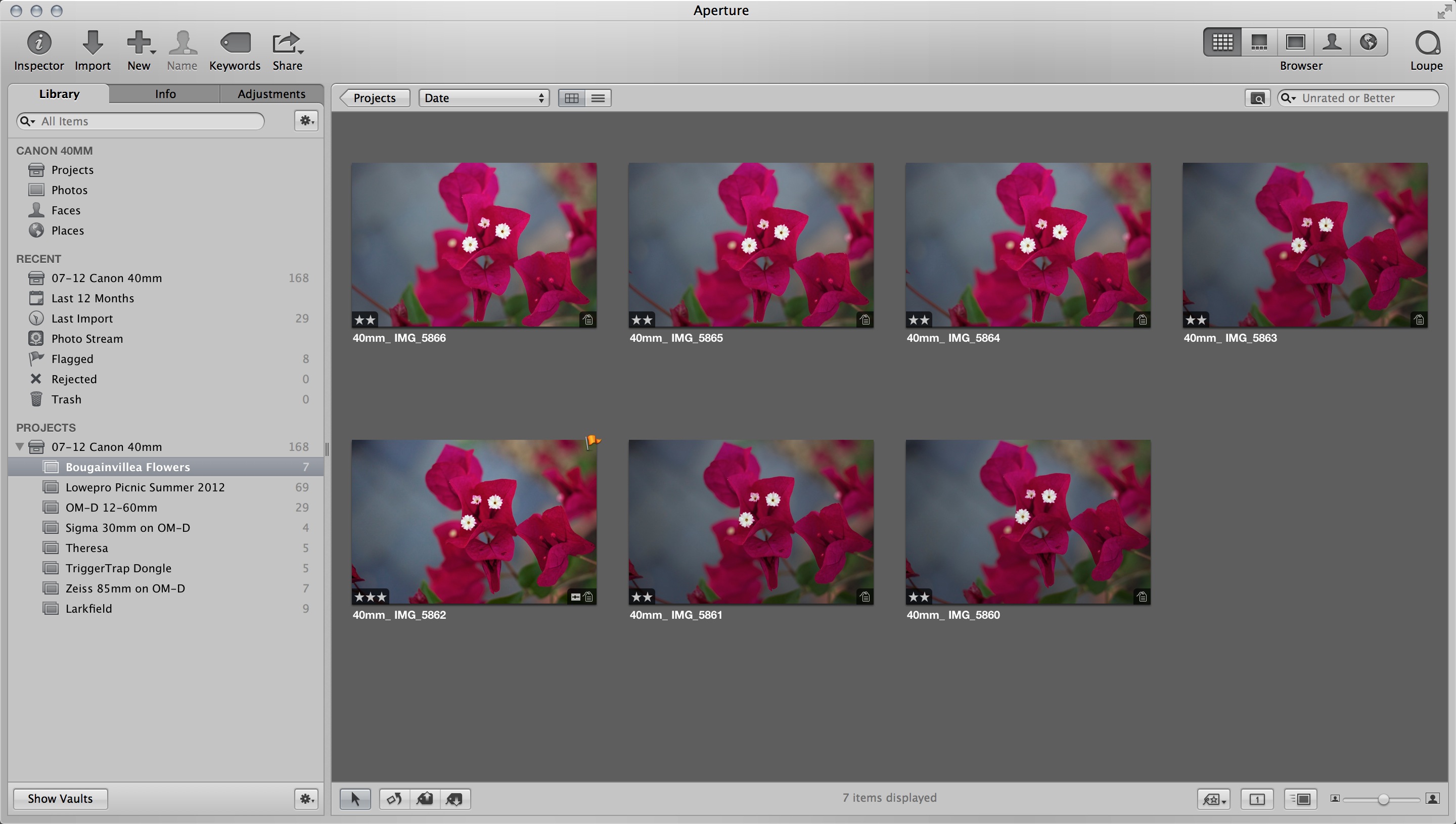
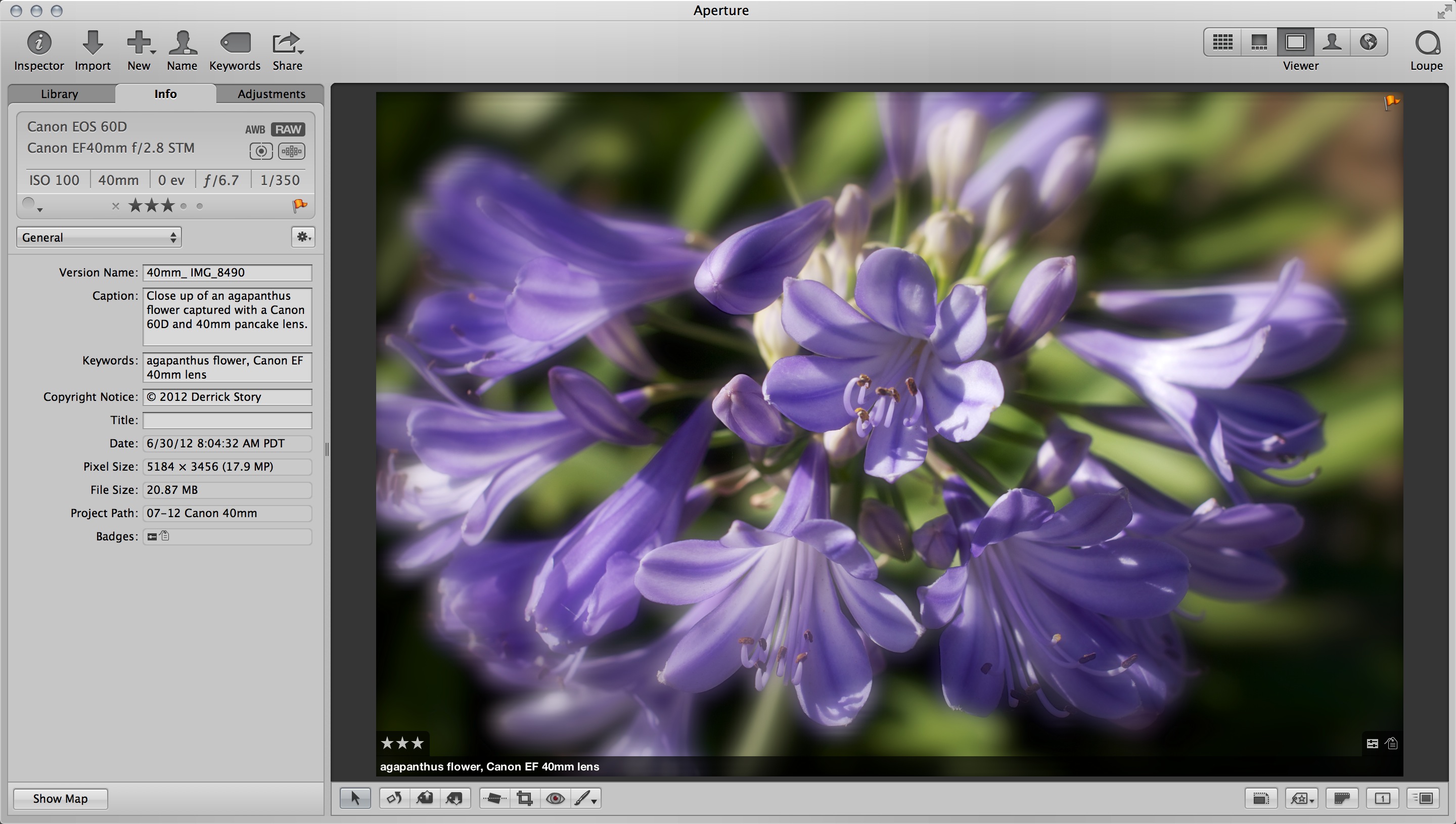
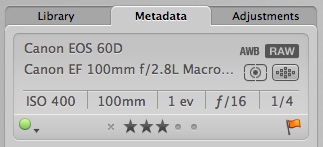
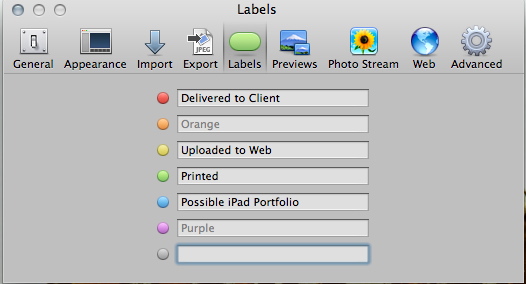
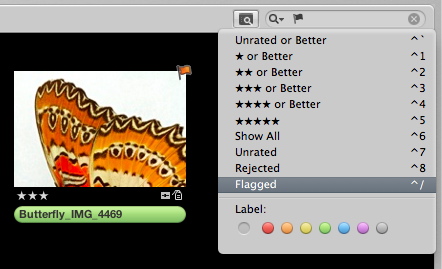
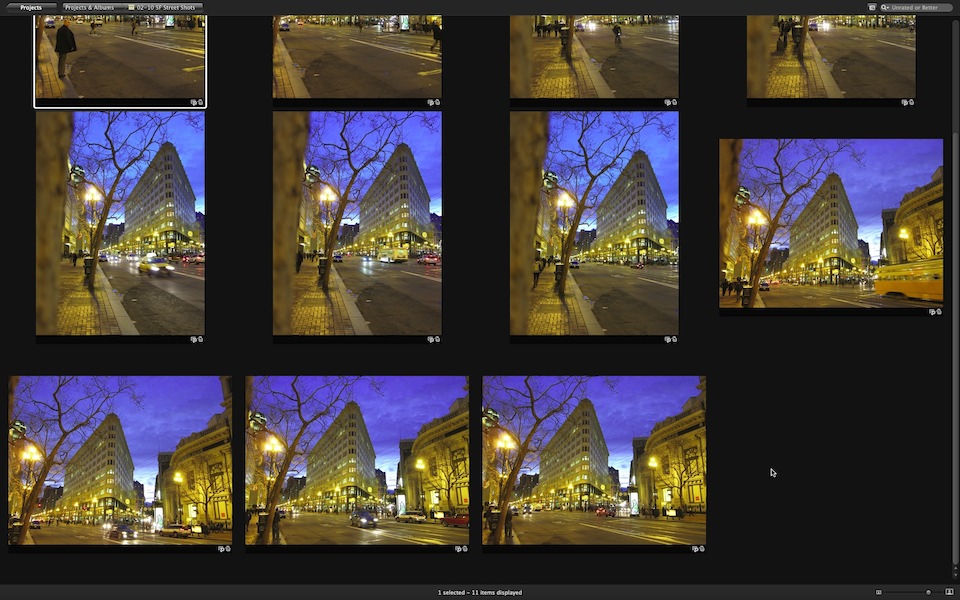
The workflow that I recommend for photographers who buy new cameras that are not supported yet in Aperture, is to shoot Raw+Jpeg in the beginning. Upload the Raws and Jpegs separately in Aperture and keep the in separate Albums, as I've done here. (Check the Library pane in the middle illustration to see the set up.) You can use the Jpegs immediately. Once the Raw update is available, you can then process the Raw files and switch over to them.

I've taken many good shots with the E-PM1 prior to the Raw update. If I didn't use this technique, I'd have only Jpegs from those weeks of shooting. Now I have both.

More Aperture Tips and Techniques

To learn more about Aperture 3, check out my Aperture 3 Essential Training on Lynda.com. Also, take a look at our Aperture 3 Learning Center. Tons of free content about how to get the most out of Aperture.


The Digital Story on Facebook -- discussion, outstanding images from the TDS community, and inside information. Join our celebration of great photography!


I'm a big fan of what Nik Silver Efex Pro 2can do for my B&W photography, so when I heard that they've just released Color Efex Pro 4 for color work, I wanted to give it a try.

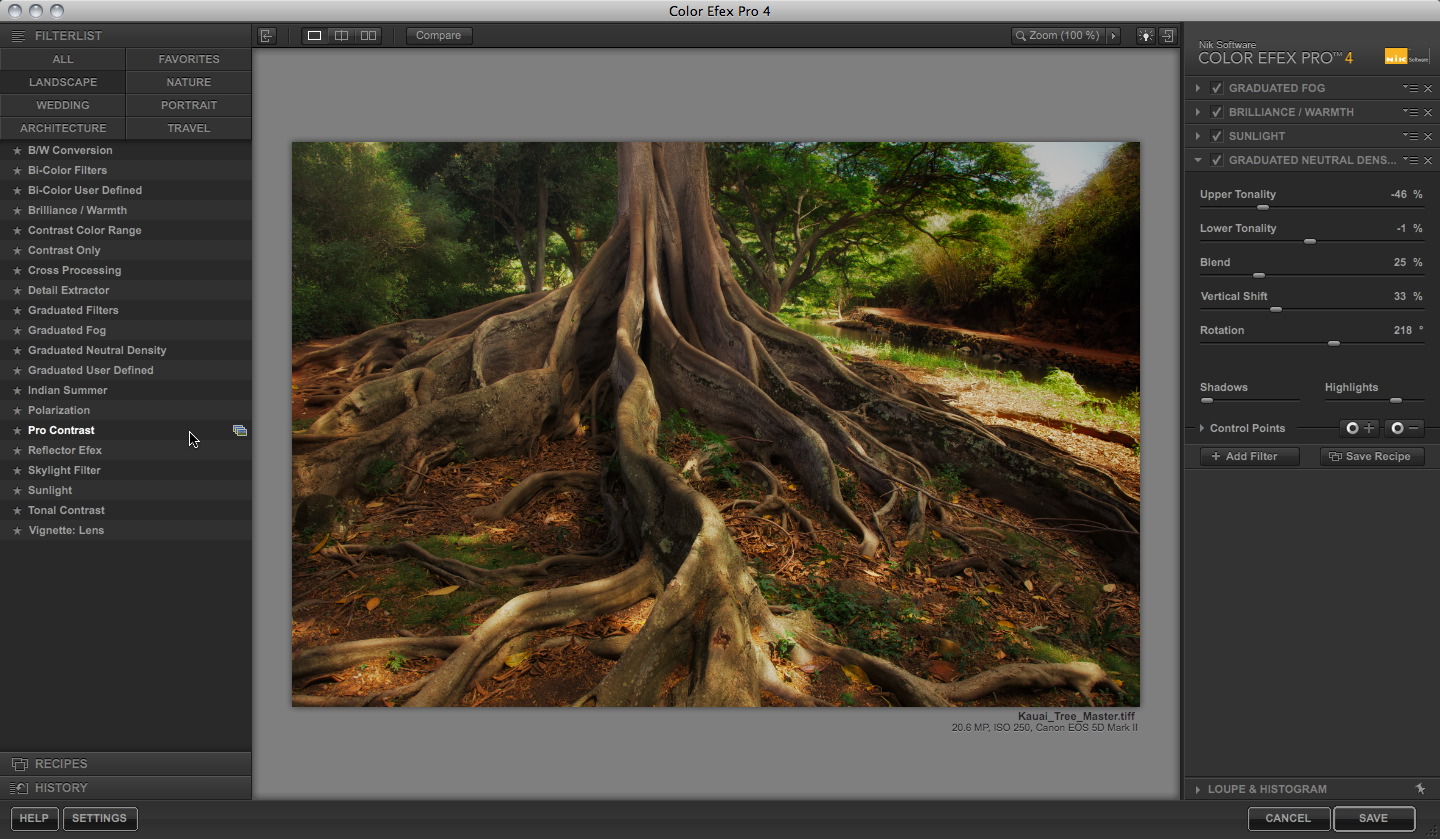
Color Efex Pro 4 Project in Process Project in process with 4 filters active. Click on image for larger version. Photo by Derrick Story, shot in Kauai.

Essentially, this software provides a set of 55 customizable photo filters that you can combine in just about any imaginable way. When you build a set of filters that results in a look you want to repeat, save them as a recipie to apply to other shots.

As with Silver Efex Pro 2, there are plenty of sliders to tailor the intensity of highlights, shadows, contrast, color, etc. And, as you'd expect, control points are available to fine tune a specific area.

I combined four filters on this shot from Kauai to create a look I had always had in my mind for this image, but hadn't been able to achieve. My workflow went like this.

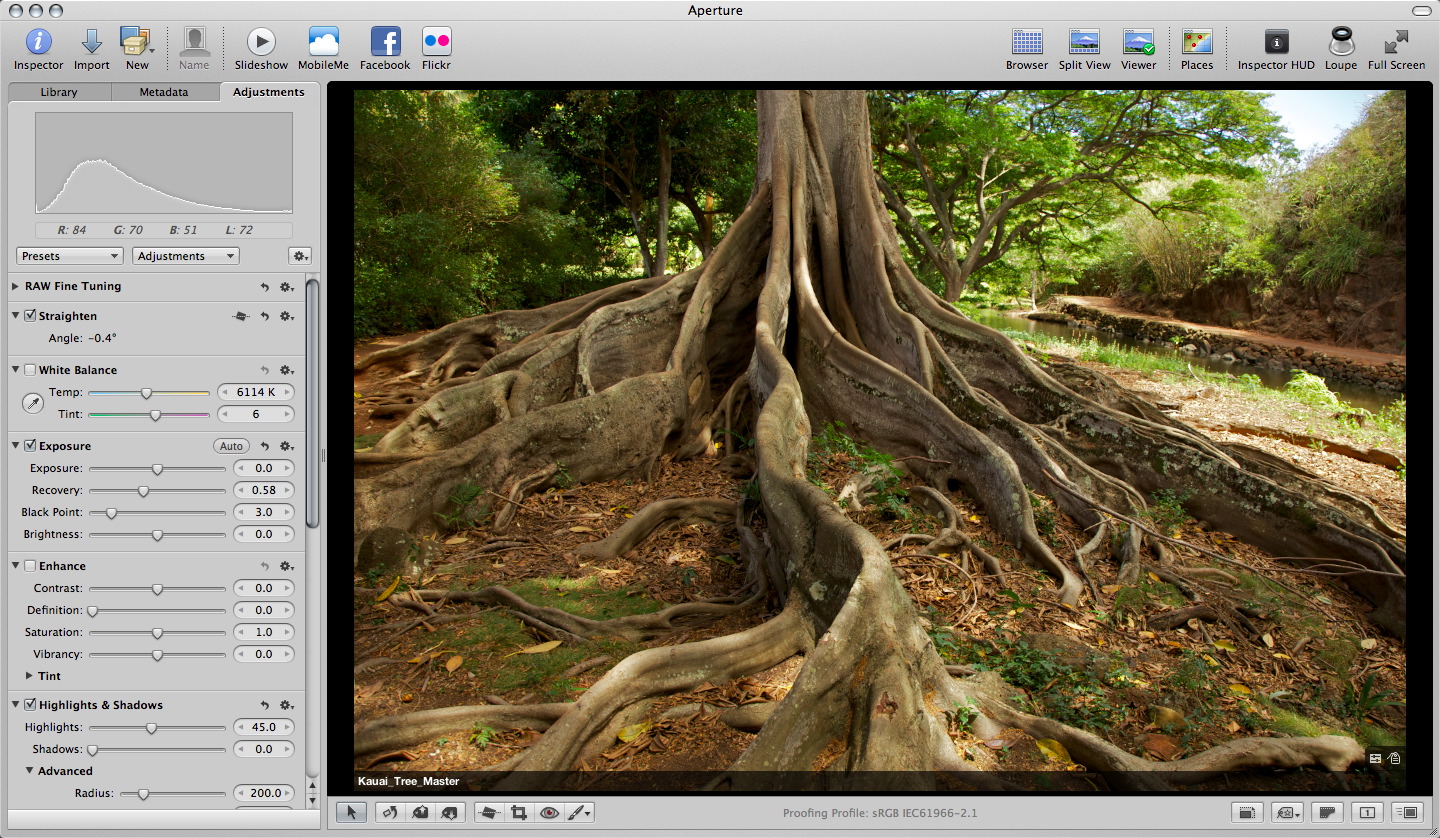
  • Make basic image adjustments in Aperture 3 to the master Raw file.
  • Choose Color Efex Pro 4 from the Photos > Edit with Plug-in menu.
  • Click on the Landscape filter grouping in the left column.
  • Choose a filter that looks appropriate and preview its options by clicking on the variations icon to the right of the filter name (see illustration).
  • Pick a variation I want, then tweak to taste.
  • Click the Add Filter icon in the right column to add another effect to the image (if you don't use Add Filter, then the next effect you choose replaces the previous one).
  • Repeat process until I've added the right amount of filters and adjusted them for the look I want.
  • Click on Save Recipe in the right column to save my settings. Give the recipe a name.
  • Click the Save button in the lower right corner to process the image and send the Tiff file back to Aperture,

Original Tree Image from Kauai Here's the original tree image in Aperture before working on it in Color Efex Pro. The shot is fine, but it doesn't have the Jurassic Park mood that I wanted.

Just like with any Edit plug-in in Aperture, you're adding another image to your library. I like to stack them together to keep things organized. Color Efex Pro 4 works with Adobe Lightroom and Photoshop also. So, regardless of your preferecne for image editing software, you can use these filters.

A few of the other features I like in Color Efex Pro 4 include a zooming tool, compare mode, choice of background shade, and history browser. There are two editions of the software available from the Nik site: Standard (26 filters) $99.95 or Complete (55 filters) for $199.95. Works great on both Macs and Windows machines. If you own a previous version, you can upgrade to the Compelte Edition for $99.95. And if you purchase Color Efex Pro 3.0 or the Complete Collection on or after August 7, 2011 you are eligible for a free upgrade to Color Efex Pro 4.

Bottom line: I was able to learn the software quickly by watching a couple videos on Nik's On Demand Video Training page, then put these effects to work on my images. The visual nature of the interface makes it easy to create the look you want. It's not for every image, in part because I don't want to fill up my Aperture library with large Tiff files. But for that special shot you want to get just right, Color Efex Pro 4 can get you there quickly.

More Aperture Tips and Techniques

My next Aperture Workshop is Nov, 12-13, 2011 in Santa Rosa, CA. Write me if you're interested in attending.

To learn more about Aperture 3, check out my Aperture 3 Essential Training on Lynda.com. Also, take a look at our Aperture 3 Learning Center. Tons of free content about how to get the most out of Aperture.


The Digital Story on Facebook -- discussion, outstanding images from the TDS community, and inside information. Join our celebration of great photography!


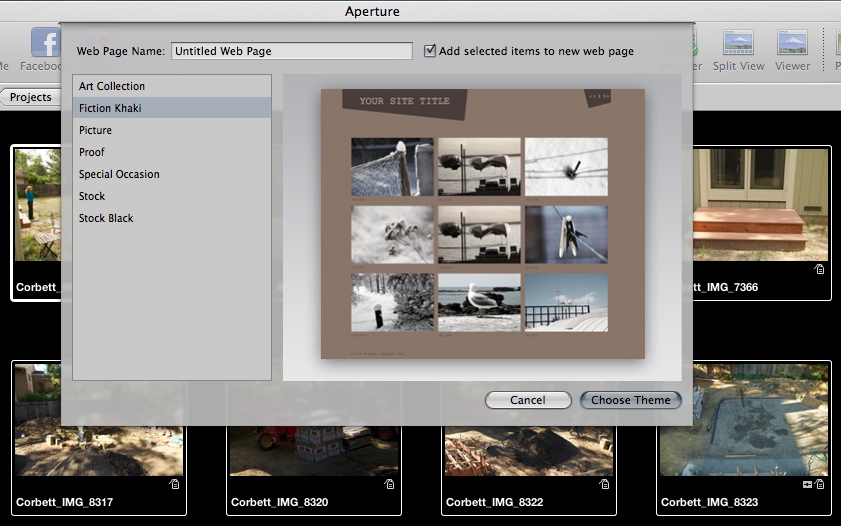
Ever since I can remember, Aperture has had the same five templates for creating web galleries. But thanks to Themes for Aperture by Graphic Node, we have 51 more visual possibilities to choose from when building online galleries.

Themes for Aperture

You download the program from the Mac App Store, then browse the various templates they've designed. You do the browsing in the Themes for Aperture application. Once you find something that catches your eye, mouse over it to reveal the "Save Theme" button. Click on it, and you get a dialog box asking if you want to save the template to the default location in the Aperture container. Click OK, and you're set.

Now, when you choose Web Page from within Aperture, the new template is available right along side the standard offerings from Apple. I tested a handful of them, and they created fresh looking, workable galleries, just as promised. The only difference I noticed was that the Graphic Node themes took a bit longer to export than the standard Apple selections, sometimes up to twice as long. For example, a gallery that began with 37 Raw files took 5 minutes to export on my MacBook Air using the stock black Apple theme, but took 10 minutes when I selected the Precision Camouflage template from Graphic Node. But once the export was complete the theme worked flawlessly.

I was able to remove a theme I didn't want by quitting Aperture, going into the Aperture application container, drilling down to Content > Resources > Web Themes, and dragging the particular web theme to the trash.

Graphic Node is offering an introductory price of $19.99 for Themes for Aperture through August 15th. Some fun stuff in there!

More Aperture Tips and Techniques

My next Aperture Workshop is Nov, 12-13, 2011 in Santa Rosa, CA. Write me if you're interested in attending.

To learn more about Aperture 3, check out my Aperture 3 Essential Training on Lynda.com. Also, take a look at our Aperture 3 Learning Center. Tons of free content about how to get the most out of Aperture.


The Digital Story on Facebook -- discussion, outstanding images from the TDS community, and inside information. Join our celebration of great photography!


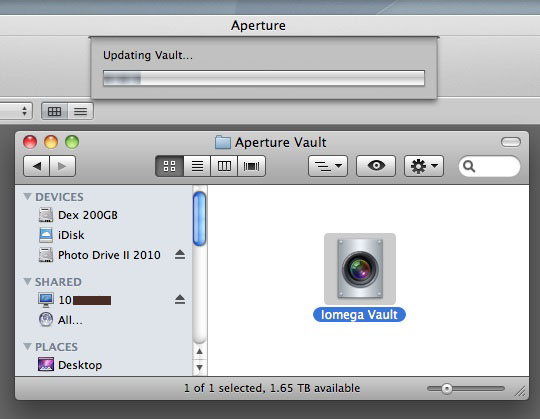
aperture_network_vault.jpg

I've always used external hard drives to store my Aperture 3 Vaults. And even though I work with a referenced library these days instead of a managed library, I still use the vault to back up my image adjustments, ratings, and metadata. If my computer ever fails, I want to be able to restore my work as well as my master files.

But as I experimented more with personal cloud computing, I started thinking that it would be nice to have a copy of my vault on one of those network drives that has RAID1 mirroring. So I tried it.

On my local area network, I selected the Iomega ix2 storage drive that contained two 2TB hard drives that were set up to mirror one another. I opened Aperture and selected "Add Vault" from the gear menu at the bottom of the Library pane. In the dialog box that followed, I was able to choose the Iomega ix2 from the "Shared" drives. I initiated the process for creating a new Vault... and Aperture began backing up to it.

Even though my master Raw files are not contained in the Aperture library, the back up of my previews and work is still about 50 GBs. The building of the Vault for this went slowly, taking overnight to complete the job.

Subsequent updates to the Vault have gone much faster since Aperture uses incremental archiving -- it only backs up new data or data that has changed. It's still not as fast as a connected hard drive. But, I usually just work on other things during the few minutes it takes to refresh the Vault.

With this new set-up, I find that I'm running the Vault more often because it's more convenient. I doubt that I'll ever try this over the Cloud, but over my local area network, all seems well.

More Aperture Tips and Techniques

My next Aperture Workshop is Nov, 12-13, 2011 in Santa Rosa, CA. Write me if you're interested in attending.

To learn more about Aperture 3, check out my Aperture 3 Essential Training on Lynda.com. Also, take a look at our Aperture 3 Learning Center. Tons of free content about how to get the most out of Aperture.


The Digital Story on Facebook -- discussion, outstanding images from the TDS community, and inside information. Join our celebration of great photography!


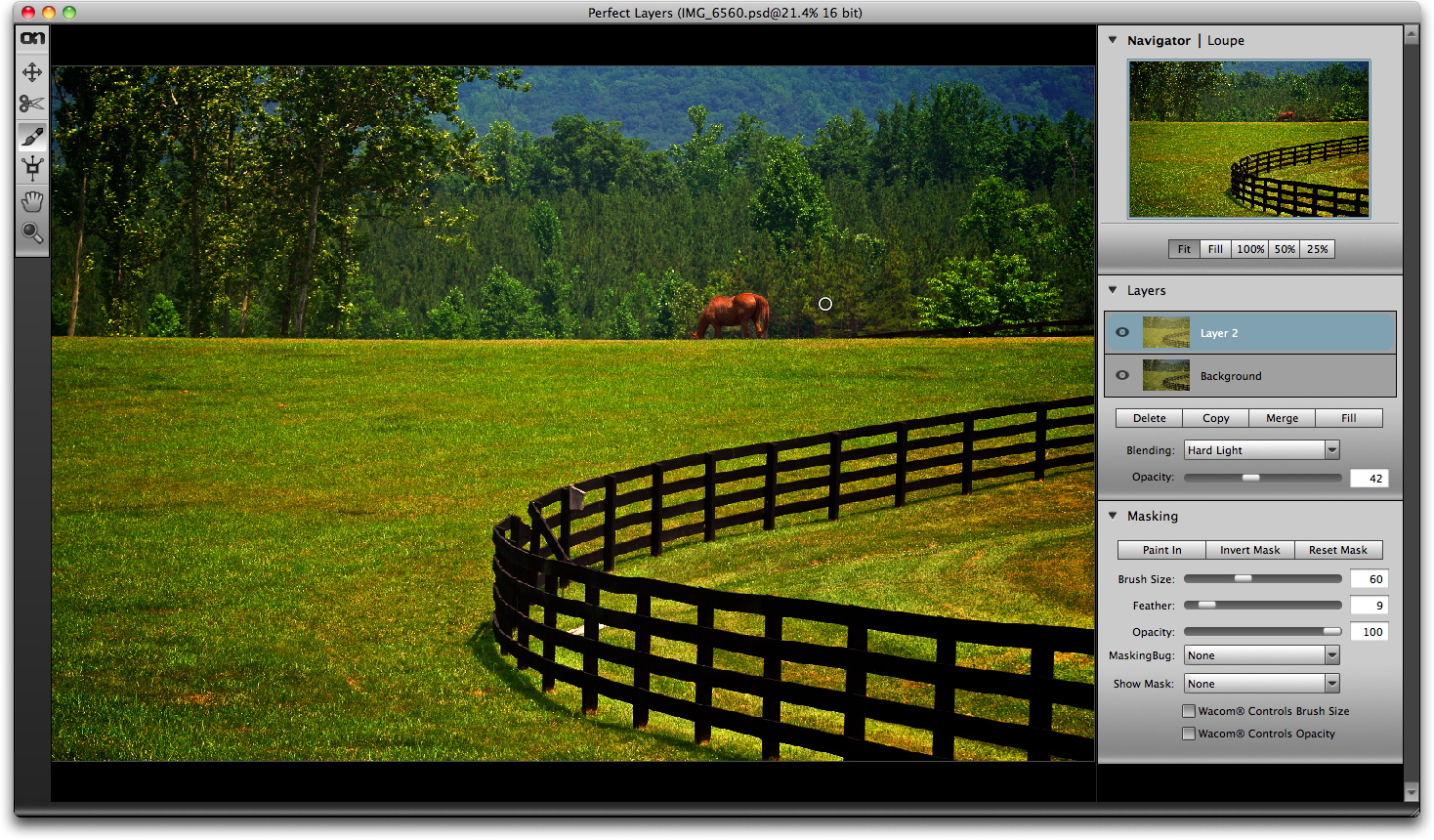
onOne Software announced today the availability of Perfect Layers for Aperture and Lightroom at a special intro price of $99.95. I loaded up this plug-in into Aperture 3 on my MacBook Air to take it for a quick test drive.

Perfect Layers for Aperture

After installation, Perfect Layers is available via Photos > Edit with Plug-in. It takes a few seconds to create the Photoshop file and present it to you in a new window. You can select one file, or multiple images to open in Perfect Layers.

Once there, you have a streamlined, but very capable version of the layers functionality that was originally created by Adobe for Photoshop. If you're working with a single image, the first thing you'll want to do is copy it to create a new layer. Then you can play with blending modes and painting to create the effect you want.

I wanted to add a little punch to this countryside shot from Virginia. So I used the Hard Light blending mode, then "painted out" the effect on the horse. That allowed me to pump up the landscape without overdoing it on the main subject.

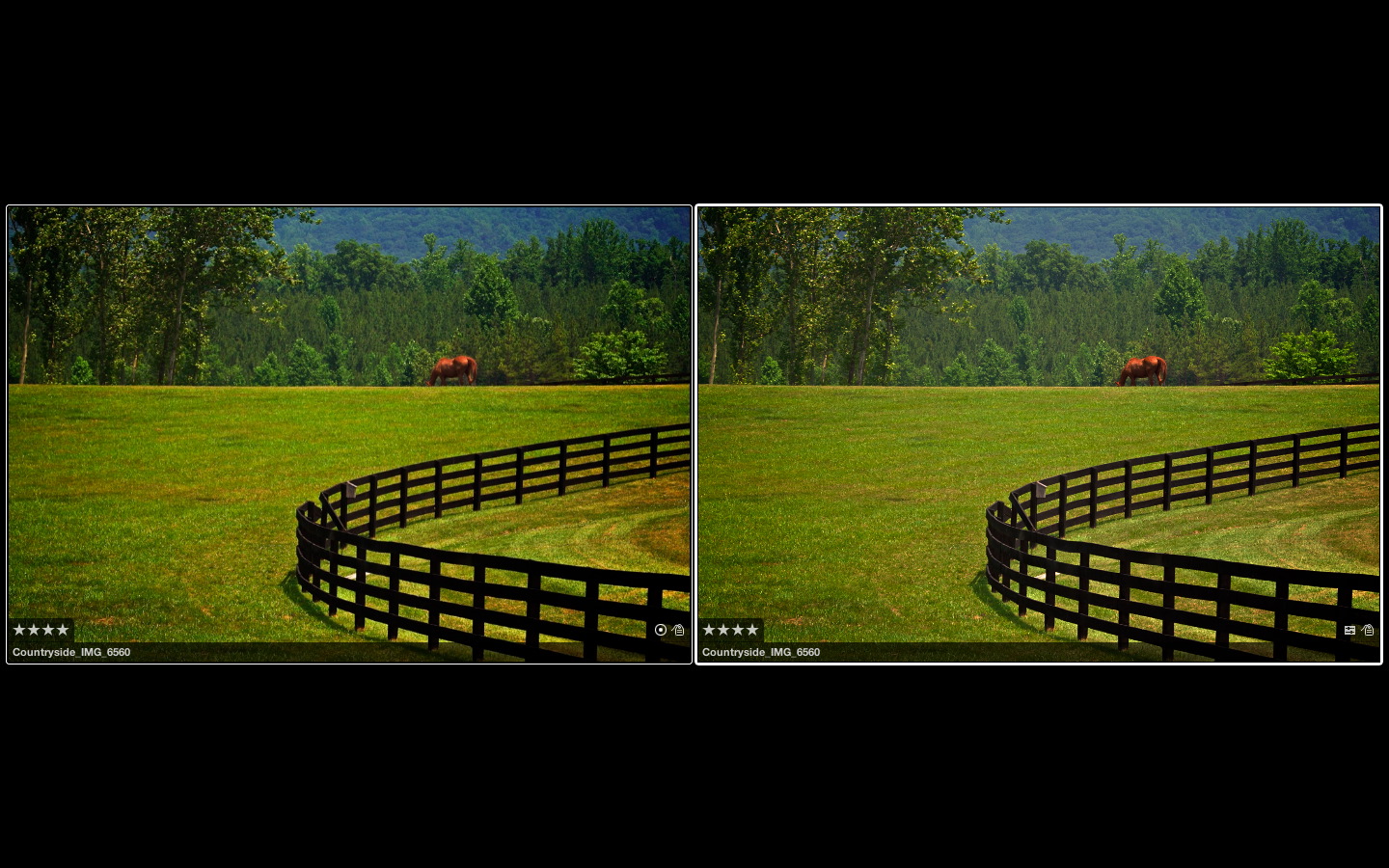
side-by-side-aperture.jpg Side by side comparison in my Aperture library. The Perfect Layers version is on the left.

Working in Perfect Layers is fairly intuitive if you've worked in Photoshop. If not, you might want to spend some time in the How To section on the onOne site. That should get you up to speed quickly.

Performance was OK, but the plug-in did seem to tax my MacBook Air, which usually handles my photography apps quite well. I also think onOne needs to add a "Save" and "Cancel" buttons to the interface. Once you're finished with the work, your only options are to go to the menu, or just close the window and wait for the dialog box that asks you if you want to save. Seems like an overlooked detail to me.

Perfect Layers isn't for you're everyday photos. This plug-in is for those special shots that you want to get just right, or for building composite images. You pay the typical round tripping price when you use this app. My original horse shot is 27 MBs in the Aperture library. The Perfect Layers version is 411 MBs. As I always say in my workshops, you want to use the native Aperture tools as much as possible, and save plug-ins for only when you need them.

For photographers who don't want to make the full investment for Photoshop CS5 but wants the ability to work with layers in Lightroom or Aperture, Perfect Layers represents an alternative. Keep in mind that Photoshop Elements also has layers capability, however. You can roundtrip from Aperture to CS5 or Elements, or use a plug-in. It really depends on which tool you like the best. And since there is a 30-day free trial of Perfect Layers, you might want to give it a look.

For the time being, I'm going to continue to test Perfect Layers in Aperture. I like the interface and the convenience. And I'm curious to see how often I choose this tool over the other options. I'll keep you posted.


The Digital Story on Facebook -- discussion, outstanding images from the TDS community, and inside information. Join our celebration of great photography!


Unsupported Raw File

When you have a new camera that produces Raw files not immediately supported in Aperture (and iPhoto), how should you approach the situation? Here's the process that I go through.First, I look at Apple's track record with the camera brand. If there's a history of support, then odds are good that an update will come. I shoot primarily Canon and Olympus. I know that the Canon updates will come pretty fast, and those from Olympus will lag behind. But I have confidence that both will be supported.

Case in point: Apple just released Raw Compatibility Update 3.7 that adds support for my XZ-1 and for the E-PL2. The E-PL2 came out in January of this year, so the update didn't follow until 4 months later.

both_as_masters.jpg

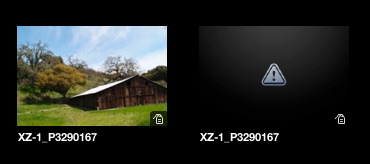
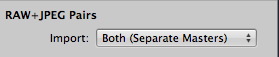
While I wait for the update, I'll shoot Raw+Jpeg in the camera, then upload the files in Aperture choosing "Both (Separate Masters)" in the Raw+Jpeg Pairs popup menu (in the Import dialog box). Once imported, the Jpegs will show (as in the illustration above) and the Raws will not. If you find this distracting, you can always stack the pairs with the Jpeg as the select, then collapse the stacks. You can do this quickly with the Auto Stack command, then Close All Stacks.

Once the update arrives, and you've installed it, the Raw file just has to be processed. Usually, you can simply click on the thumbnail with the Adjustments tab open, and Aperture will process it automatically. After that, you can either make the Raw file the "pick" for the stack, or delete the Jpegs from your library.

supported_raw.jpg

If Apple doesn't have a history supporting a particular line of cameras, then you're rolling the dice. You can always shoot Jpeg only. Or you can process the Raw files in Adobe Camera Raw when it's supported there.

What's the biggest difference I notice between the Raw and Jpeg versions? I'm better able to display highlight and shadow detail in the images. And for me, that benefit is worth the trouble.

More Aperture Tips and Techniques

My next Aperture Workshop is May 21, 2011 in Santa Rosa, CA. We'll probably schedule the next for Nov. 2011. write me if you're interested in attending either.

To learn more about Aperture 3, check out my Aperture 3 Essential Training on Lynda.com. Also, take a look at our Aperture 3 Learning Center. Tons of free content about how to get the most out of Aperture.


The Digital Story on Facebook -- discussion, outstanding images from the TDS community, and inside information. Join our celebration of great photography!


We've been able to apply watermarks in Aperture since the beginning, but the problem is they usually don't look the way we want. Unless you create your watermark with a transparent background, you'll get what looks like a rectangular label instead of the more elegant type without a box.

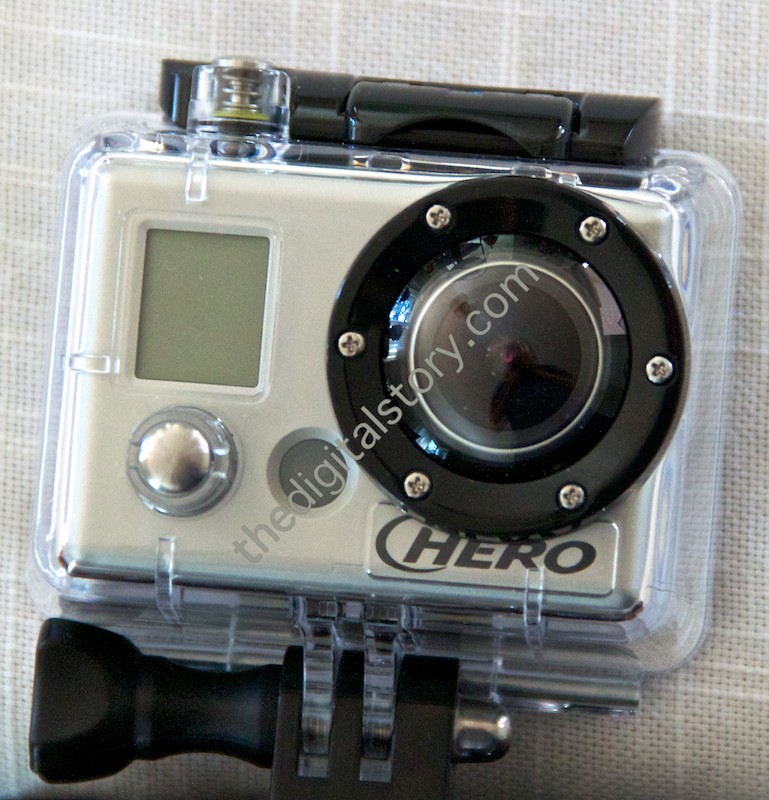
Watermark Applied Watermark with transparent background created in Photoshop, then applied in Aperture 3.

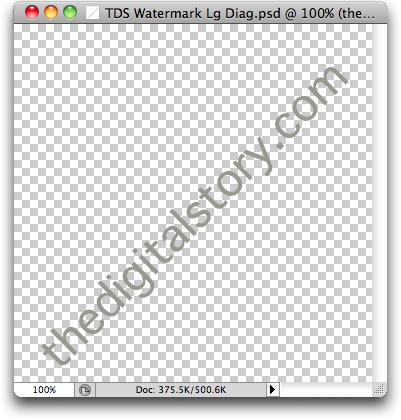
The procedure for a better watermark is relatively simple. Start in Photoshop. Go to File > New, then choose "Transparent" for the Background Contents popup menu in the dialog box. Click OK. Once you've created the file with a transparent background, use the text tool to type and style your watermark. You may want to shade the text light gray instead of black (even though you do have an opacity slider later on in Aperture for fine tuning). If you want a diagonal watermark, go to Image > Image Rotation > Arbitrary and set the angle you want. Once everything looks good, then Save As Copy in the PNG format. You'll also want to save your master as a PSD file for easy editing at a later date.

transparent_background.jpg

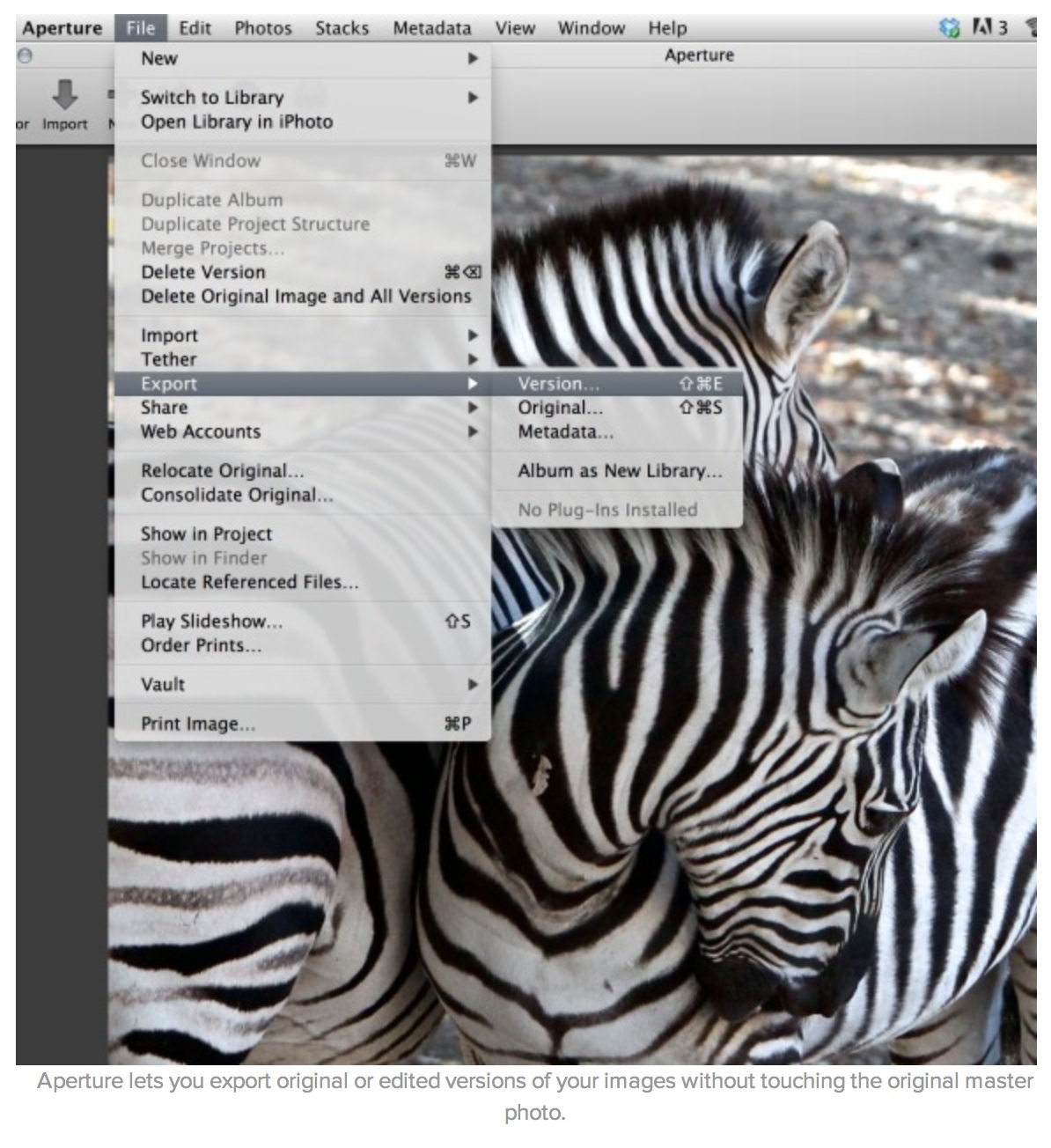
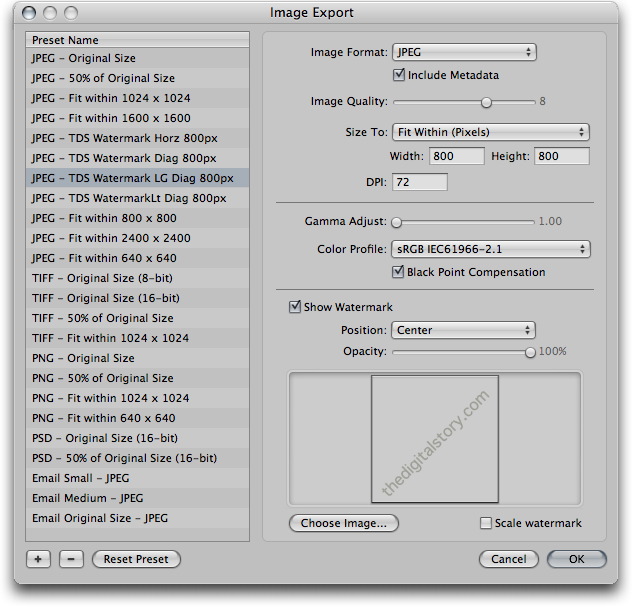
Now go to Aperture. Pick the image you want to apply the watermark to, then choose File > Export > Version. In the Export dialog box, choose "Edit" at the bottom of the Export Preset popup menu. Click the "+" icon in the lower left to create a new preset. Set your basic parameters, then check the "Show Watermark" box. Click the "Choose Image" button and navigate to the graphic you created in Photoshop. If you go diagonal, you'll probably want to position it in the center.

Aperture Export Presets

Once everything is set up to your liking, click OK, then click Export Versions. You may have to run a few tests to get everything the way you want. Once you do, you can watermark many images at once by batch exporting from Aperture. You can also set up different export presets for watermarks placed in different positions, such as lower left and lower right.

I don't have to watermark often. But when I do, it's nice to have this set up ahead of time.

More Aperture Tips and Techniques

My next Aperture Workshop is May 23, 2011 in Santa Rosa, CA. write me if you're interested in attending.

To learn more about Aperture 3, check out my Aperture 3 Essential Training on Lynda.com. Also, take a look at our Aperture 3 Learning Center. Tons of free content about how to get the most out of Aperture.


twitter.jpg Follow me on Twitter

There are very few plug-ins that I'd consider necessay. The editing tools in Aperture 3 and Lightroom 3 are so robust, that I can handle most of the things I need within those applications. But after working with Nik Software's Silver Efex Pro 2 for a few weeks, I've decided that this is my next "must have" enhancement.
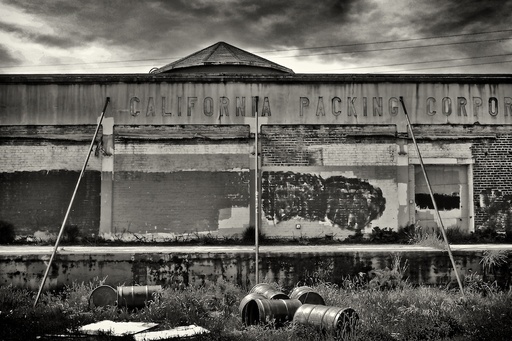
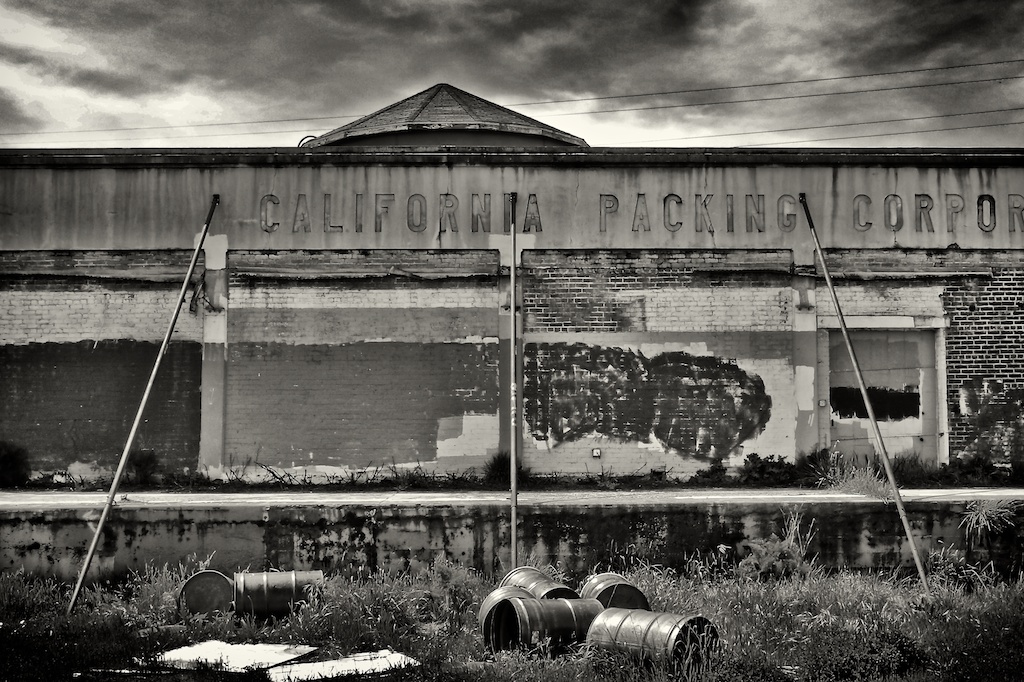
Warehouse - Silver Efex Pro 2 Abandoned Warehouse: processed in Aperture 3 and finished with Silver Efex Pro 2 plug-in using global adjustments only. Photo by Derrick Story with an Olympus XZ-1. Click on image for larger version.

Silver EFEX is a tool to convert your images to Black & White. Now you may be saying to yourself, "I know 10 ways to create a B&W photo." So do I. But none of them work as well at this plug-in. The whole reason I even paid attention to this app in the first place was because I saw images that looked great, and I wanted to know how they were created. Many of them with Silver Efex Pro 2.
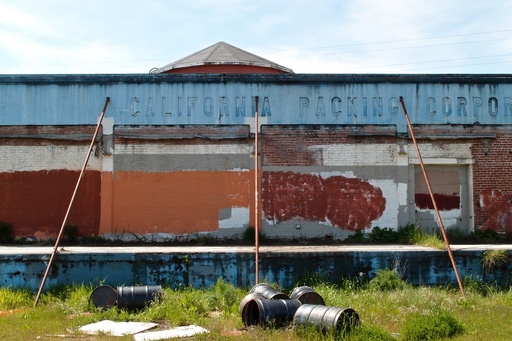
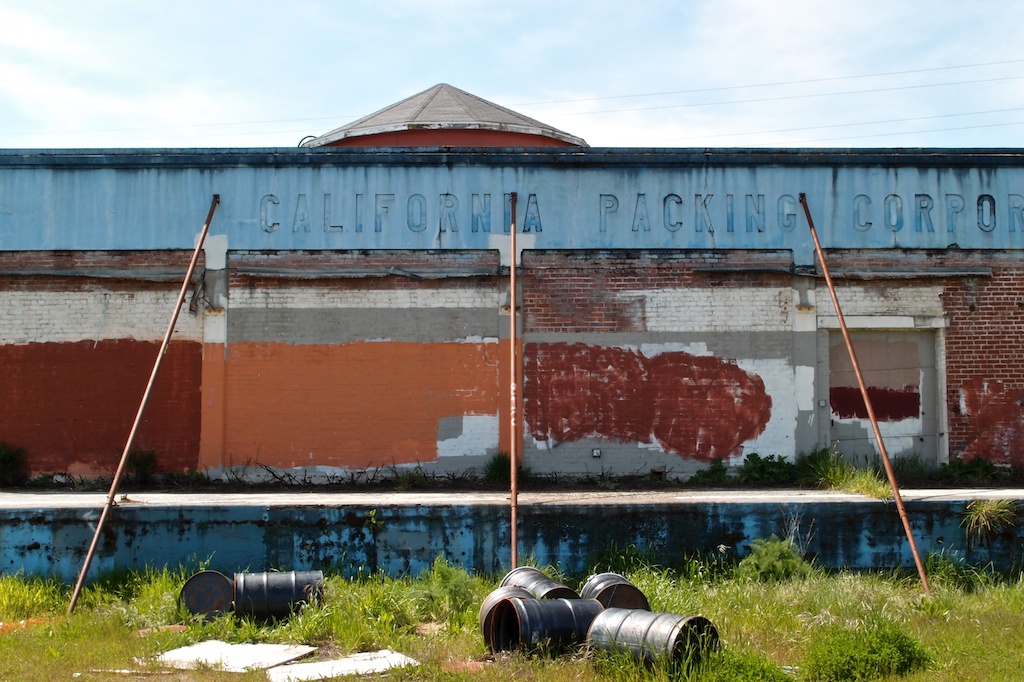
Abandoned Warehouse - Original Image Original image captured in mid-day lighting. Click on image for larger version.

New Features in Silver Efex 2

This new version adds many important tools:

  • Refined and improved black and white conversion algorithms
  • Highlight, Midtone,and Shadow Brightness control
  • Dynamic Brightness control
  • Amplify Blacks and Amplify Whites controls
  • Soft Contrast control
  • Highlight, Midtone, and Shadow Structure control
  • Fine Structure control
  • Selective Colorization
  • Image Borders
  • History Browser
  • GPU Processing
  • Improved interface and interaction controls

Most of the images I've worked on have only required the global controls. There are selective adjustments available, using control points, if you need them. I was surprised at how often I didn't. The basic workflow I use is relatively simple.
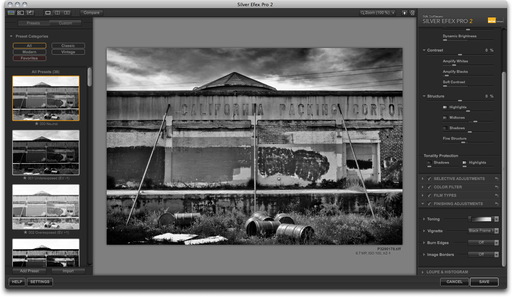
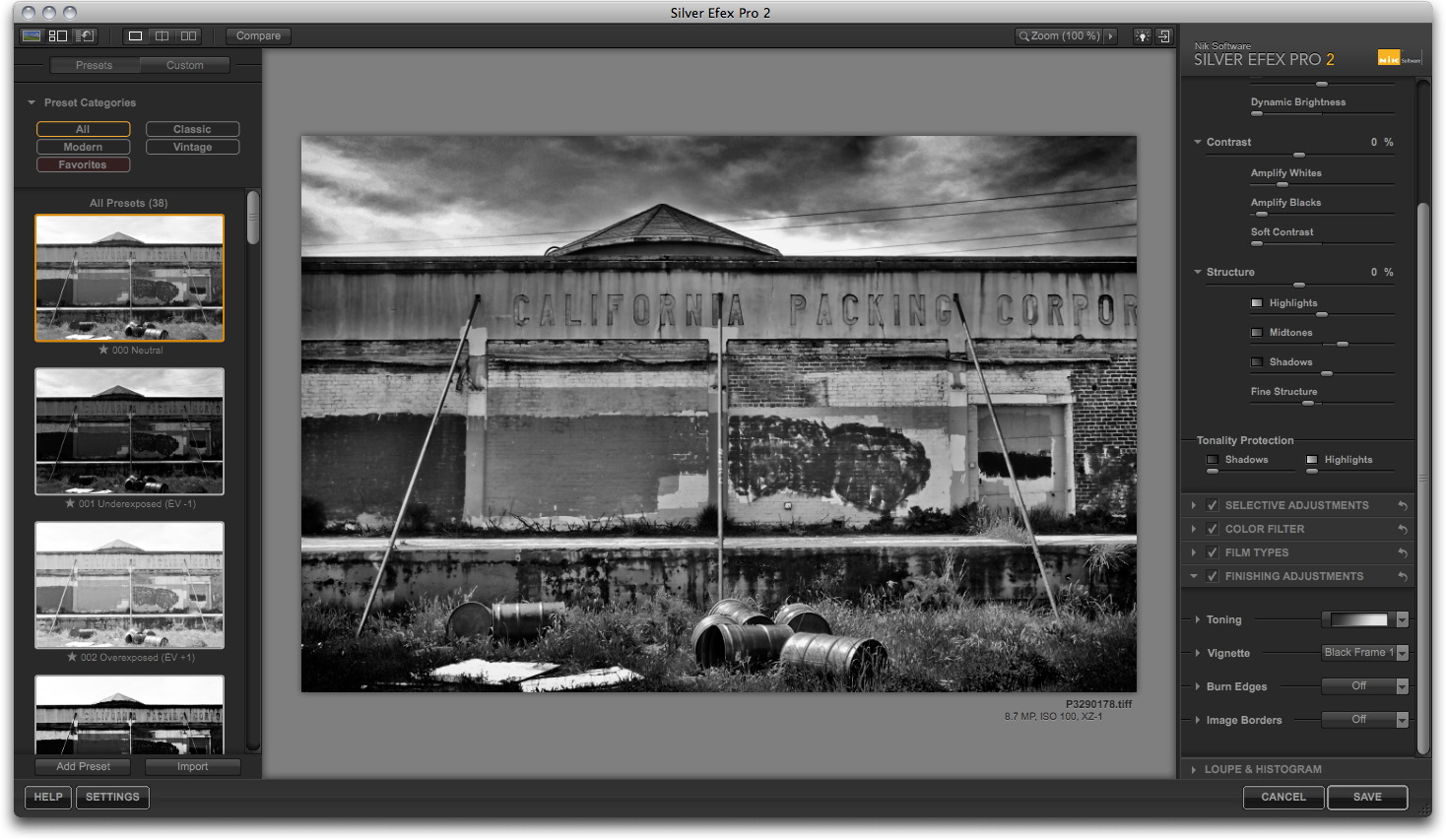
Silver Efex Pro 2 Interface Silver Efex Pro 2 interface. Click on image for full size version.

Basic Silver Efex 2 Workflow

For this example, I'm using Aperture 3 as the host app. But the plug-in works with Aperture, Lightroom, and Photoshop. And you get compatibility for all three in the box.

In Aperture, first I choose a color image, then I go to Photos > Edit with Plug-In > Silver Efex Pro 2. Aperture prepares the image for hand-off. Once the Silver Efex interface appears, make it full screen by pressing the "F" key.

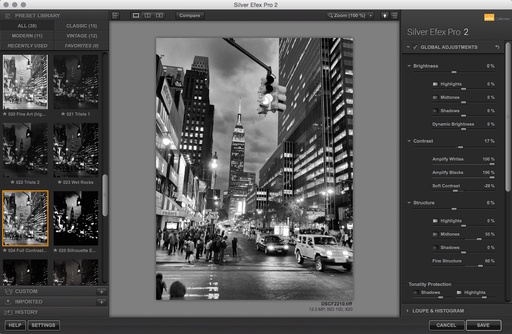
On the left side of the three-paned interface are the presets, with the "000 Neutral" selected at the top of the column. You can preview the other presets by clicking on them. This is helpful to get a feel for the possibilites of your photo. I usually return to Neutral, however, and start working the controls on the right side of the interface. This way, I get the exact look I want.

Typically, the three basic global controls (Brightness, Contrast, and Structure) are collapsed. Click on the triangle next to their names to reveal more sliders. I also open the Loupe & Histogram window at the bottom of the right column, and click on Histogram. This graph is helpful when making tonal adjustments.

Now begin working on the highlights, midtones, and shadows of your picture. Be sure to play with the new Dynamic Brightness slider. It brightens areas of the photo while protecting the darker tones.

Next, I'll use the Amplify Whites and Amplify Blacks sliders to fine tune those areas. But the real killer slider here is the Soft Contrast control that adds mood by selectivly adding contrast in areas of the photo based on an intelligent alograithm.

Then I move to Structure, which is similar to "Definition" in Aperture and "Clarity" in Lightroom. But with Silver Efex 2 you have four Structure sliders, one for each tonal area, plus Fine Structure. Fine Structure can increase detail, as in the building photo. Or, as in this portrait, I decreased Fine Structure to soften the skin tones.

Now, I'll go back to the left column and click on the History Browser Icon. It's at the top of the column, third from the left. Then click on the Compare button. I generally use the Split Screen view to compare the work I've done with the original conversion. You can click anywhere in your "history" to compare that point in your work to the final product.

Once I'm satisfied with my adjustments, I click the Save button, and Silver Efex 2 prepares a Tiff and returns it to Aperture. I "stack" the new Tiff and original image for convenience.

The Bottom Line

Nik Software's Silver Efex 2 runs smoothly on my MacBook Air and keeps me excited about Black & White photography. There are many more features than I've covered here, such as the image borders, film emulators, vignettes, and toners -- plenty to keep you occupied well into the wee hours of the night.

You can see more images processed with this software on the TDS Flickr site.

Update! Hunt's Photo and Video is offering Silver Efex Pro for $129, plus free shipping, and a free upgrade to Silver Efex Pro 2. While supplies last.


twitter.jpg Follow me on Twitter


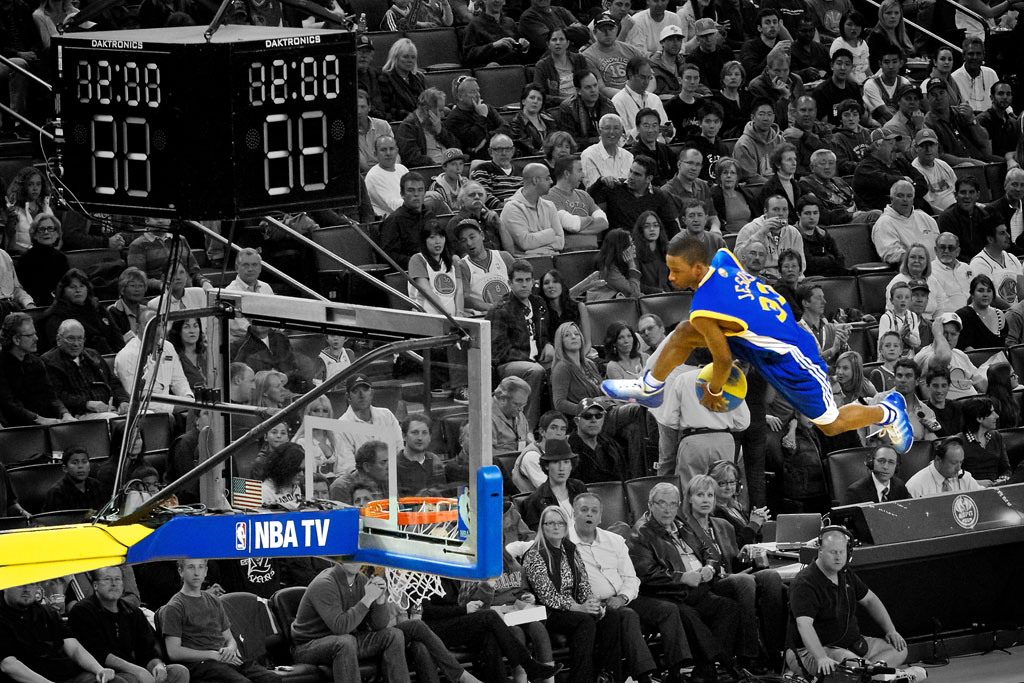
By using B&W in a photo, you can help focus the viewer's eye to a particular area of the composition. In this shot for example, I like how the basketball player is flying above the rim. It's amazing really. But in the full color version, the colorful crowd was distracting, making it hard to isolate the player with the ball. I like the expressions in the crowd, but I want the viewer to look at those after focusing on the main subject.

Flying Basketball Player After bouncing off a trampoline during the halftime show at Oracle Arena, this athlete soars high into the air then dunks the ball on his way down. Click on image for larger version.

To help improve things, I converted the entire image to B&W in Aperture 3, then I used an adjustment brush to restore the color to just the player. To do this, go to the gear menu in the B&W brick, and choose, "Brush B&W away." It's very easy to do.

You can also create this effect in Photoshop, but the thing I like about Aperture 3 is that I don't have to build a mask. The application does that for me. All I have to do is paint and I get the effect I want.

More Aperture Tips and Techniques

My next Aperture Workshop is May 23, 2011 in Santa Rosa, CA. write me if you're interested in attending.

To learn more about Aperture 3, check out my Aperture 3 Essential Training on Lynda.com. Also, take a look at our Aperture 3 Learning Center. Tons of free content about how to get the most out of Aperture.


twitter.jpg Follow me on Twitter

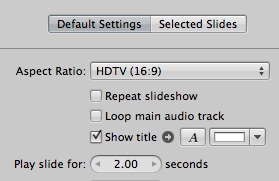
default_title_slide.jpg

Building movies in Aperture 3 that combine still images and video snippets is a great way to improve your presentations. There are two simple ways to add a title slide to the video.

The first is the default method where you simply check the box next to "Show title" in the Default tab. Aperture will use the name you've given to the slideshow project and overlay it on the first image. If you want to adjust the font or color, click on the buttons to the right of the check box.

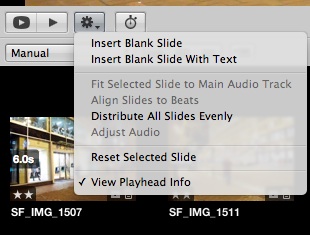
insert_title_slide.jpg

A second method, and the one I prefer, is to go to the gear menu and choose, "Insert Blank Slide With Text." Again you have font and color options, but now you're making your adjustments in the Selected Slides tab.

You can create as many title slides as you want, and drag them to any point in the presentation. They're a handy tool for adding that professional touch to your work.

More Aperture Tips and Techniques

My next Aperture Workshop is May 23, 2011 in Santa Rosa, CA. write me if you're interested in attending.

To learn more about Aperture 3, check out my Aperture 3 Essential Training on Lynda.com. Also, take a look at our Aperture 3 Learning Center. Tons of free content about how to get the most out of Aperture.


twitter.jpg Follow me on Twitter

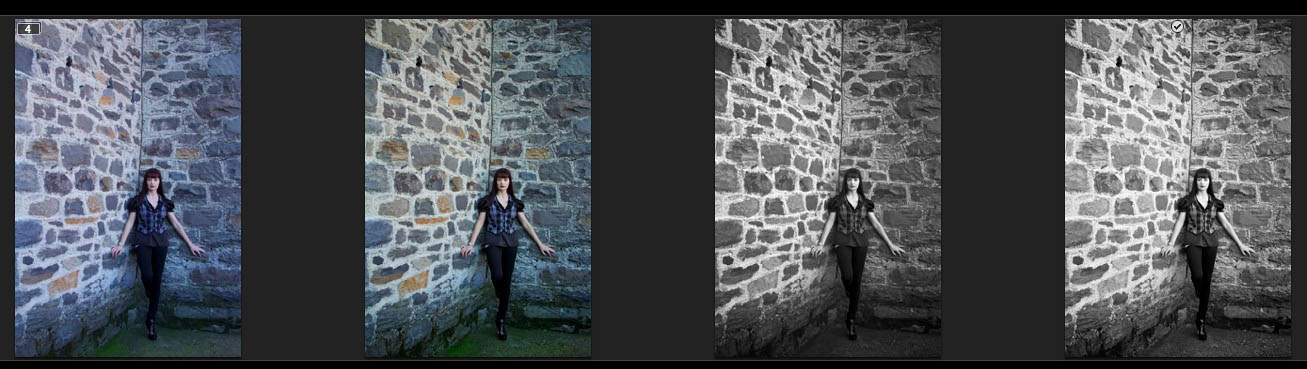
One of the most creative tools I use in Aperture isn't in the Adjustments panel. It's Versions. I make virtual copies of a selected image, then I play with the different looks until I end up with something I like.

Versions in Aperture Original image on far left, then using versions to work toward final image on far right. Click on image for larger view.

The process is simple. Click on an image, then go to Photos > Duplicate Version. Even though the new image looks and behaves like a full copy of the original, it's only bits of metadata. You're adding virtually no file space to your hard drive.

At this point, I like to put my versions in a Stack by selecting them and choosing Stack > Stacks or CMD-K. I think they are easier to manage this way. Then after some image play, I might create another version and do something else with it.

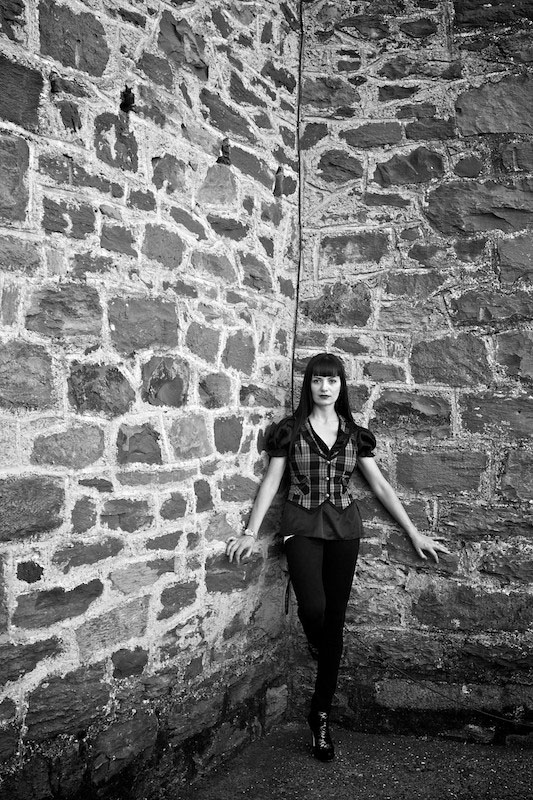
Michaela B&W Final version of the photo using the Black and White adjustment brick in Aperture 3. Click on image for larger view.

Once you have a version the way you like, you can move it to the top of the Stack (Stacks > Pick), then close the Stack by clicking on the little number icon in the upper right corner. You can open the Stack at any time for more play by clicking on the number icon again.

More Aperture Tips and Techniques

My next Aperture Workshop is May 23, 2011 in Santa Rosa, CA. write me if you're interested in attending.

To learn more about Aperture 3, check out my Aperture 3 Essential Training on Lynda.com. Also, take a look at our Aperture 3 Learning Center. Tons of free content about how to get the most out of Aperture.


twitter.jpg Follow me on Twitter

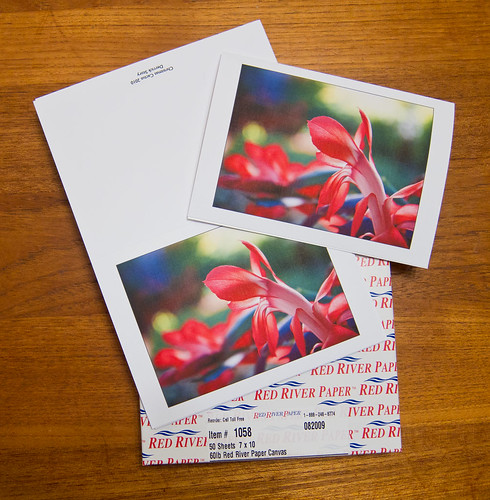
I've created a step-by-step guide for laying out fine art note cards in Aperture 3 and printing them with your inkjet printer using Red River Paper stock. A few things have changed since I published the original article for laying out cards in Aperture, so I recommend that Aperture 3 users follow the settings in this article.

The biggest difference that I encountered using Aperture 3.1 and Mac OS X 10.6.5 with an Epson R2400 printer, was that creating a "custom paper size" befuddled the printer causing it to do nothing. To work around this problem, I designed a new template in Aperture 3 that is based on a standard Letter Size sheet (8.5" x 11"). By doing this, you should be able to print these 7" x 10" cards (folded to 5" x 7") with just about any photo printer.

Here are the steps I used:

  1. In Aperture, create a custom theme
  2. Turn on Show Layout Options
  3. Create a photo box 5.75" x 4.25" and place it like this
  4. Add a text box for the back of the card
  5. Place your type and rotate it 180 degrees
  6. You can choose a type style
  7. Be sure to turn off page numbering
  8. Now, all you have to do is print your card

I recommend that you turn on Aperture's Proofing Profile (View > Proofing Profile) for the type of paper you're using. It saves you from having to make test prints. Speaking of paper, there are a variety of surfaces to choose from in the Red River Card Shop. You can get high quality envelopes there too. I generally use #7163 for my card projects.

One finishing touch to consider is creating a handsomely designed 4"x6" insert for your note card. I print these in iPhoto '11 using one of the flat card templates. They look great!

More Aperture Tips and Techniques

To learn more about Aperture 3, check out my Aperture 3 Essential Training on Lynda.com. Also, take a look at our Aperture 3 Learning Center. Tons of free content about how to get the most out of Aperture.


twitter.jpg Follow me on Twitter


aperture_icon_desktop.jpg

After just a day of testing, there seems to be many benefits to the Mac OS X 10.6.5 update, including Raw file support for 10 new cameras:

  • Canon EOS 60D
  • Canon PowerShot S95
  • Hasselblad H4D-40
  • Nikon D3100
  • Panasonic Lumix DMC-LX5
  • Sony DSLR-A290
  • Sony DSLR-A560
  • Sony DSLR-A580
  • Sony SLT-A33
  • Sony SLT-A55

You can see the complete list of supported cameras here.

Improved Export Speed in Aperture 3.1

But there's another bonus performance update that you might not have found yet. Thanks to Core Image enhancement under the hood, exporting images in Aperture 3.1 has improved also. This is welcome relief, indeed.

I tested this by editing sample "referenced" Raw files from a Canon S90 and 5D Mark II on a MacBook Pro 17" 2.5 GHz with 4 GBs Ram. I worked on one set of images with Mac OS X 10.6.4, then performed the same test on similar images (captured in burst mode) in Mac OS X 10.6.5. I applied these adjustments to all images before exporting them as full size Jpegs: Color, Levels, Crop, Vibrancy, Shadows, Recovery, Definition, and Edge Sharpen. I was very careful to make sure that all processing had completed before I initiated export. There were no other apps running during this test.

Mac OS X 10.6.4 with Aperture 3.1

Canon S90 .CR2 export to Jpeg --> 13.6 seconds
Canon 5D Mark II .CR2 export to Jpeg --> 30.2 seconds

Mac OS X 10.6.5 with Aperture 3.1

Canon S90 .CR2 export to Jpeg --> 7.3 seconds
Canon 5D Mark II .CR2 export to Jpeg --> 11.4 seconds

Since I had a number of burst mode shots in each series, I performed the test on four different images with each version of the operating system, then averaged the numbers.

So, if you run Aperture, make sure you've updated the app to 3.1 and OS X to 10.5.6. You'll get new Raw profiles plus a nice little performance boost too.

More Aperture Tips and Techniques

To learn more about Aperture 3, check out my Aperture 3 Essential Training on Lynda.com. Also, take a look at our Aperture 3 Focus Section. Tons of free content about how to get the most out of Aperture.


twitter.jpg Follow me on Twitter


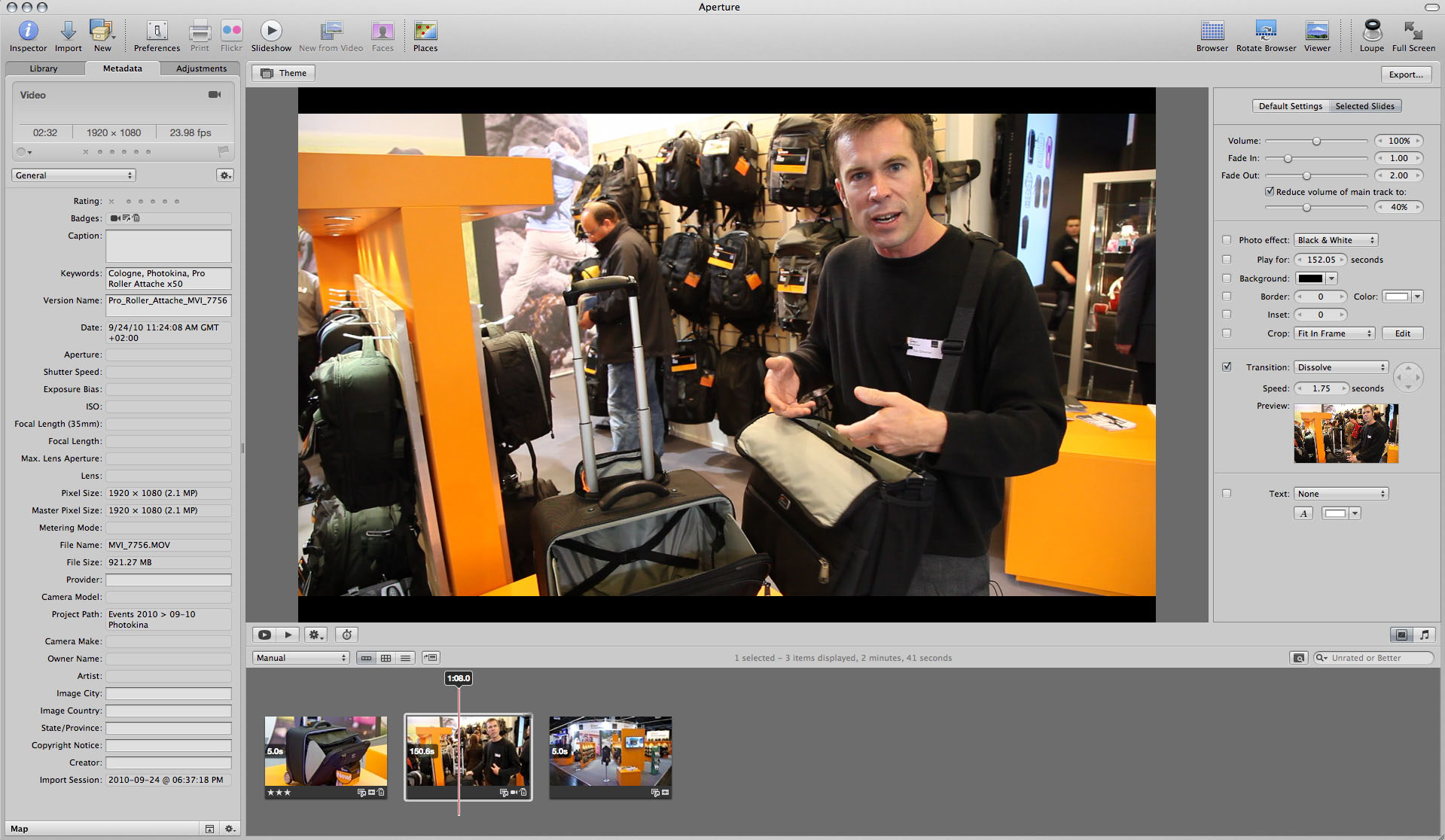
A big part of my assignment here at photokina is to create and publish short videos for Lowepro. My basic rig is the Canon EOS 5D Mark II with the EF 24-105mm f/4 L IS zoom lens and an external lapel mic. With this setup, I can record good video on the noisy, artificially lit, trade floor at photokina. Here's an example. This is a guided tour of the Lowepro Pro Roller Attache x50 narrated by Tim Grimmer.


I used an 77mm ExpoDisc to fine tune the color using the Custom White Balance setting on the 5D Mark II. With video, it really helps minimize post production by getting the sound and color right at capture. Then I can upload the content, along with the stills into Aperture for trimming and assembly.

As you can see from the illustration, this short production consists of two still photos and the HD video clip. Very simple. But often simple is good for YouTube productions, especially if they are clean.


aperture3_video_editing.jpg Video production in Aperture 3. Click on image for full size version.


I then export a 720p HD version directly out of Aperture and upload to YouTube. Streamlining this workflow allows me to get the sleep I need to be strong the next day, yet produce the content quickly.

And BTW... photokina is a blast!

More Aperture Tips and Techniques

To learn more about Aperture 3, check out my Aperture 3 Essential Training on Lynda.com. Also, take a look at our Aperture 3 Learning Center. Tons of free content about how to get the most out of Aperture.


twitter.jpg Follow me on Twitter

Music and audio add presence to our slideshows and movies. The combination of ambient sound, such as waves lapping up on a beach, and a soundtrack, such as a guitar solo, transforms our pictures into experiences.

Aperture provides two methods for managing these audio tracks, and I want to review them quickly so you can take full advantage of what this application offers for movie making.

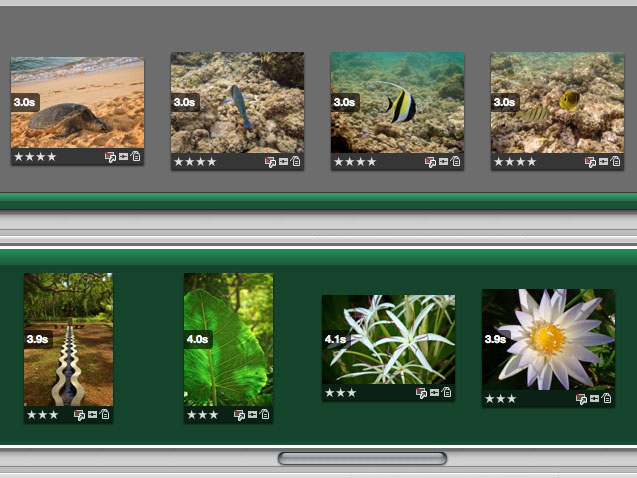
Aperture Soundtracks Two types of soundtracks: Top -- "Secondary Audio Track," which is editable, and Bottom -- Main Audio Track, which has other advantages.

There are two types of audio tracks for Aperture multimedia presentations: Main Audio Track, and the Secondary Audio Track. Each has their advantages, and I often use them together in my presentations.

The Main Audio Track is the simplest to use. Click on the "Display Audio Browser" icon in the Aperture interface (music note image) and select a song from your iTunes library. Drag it to the background of your slideshow timeline, and it converts to green (as shown in the bottom image). You can't edit this soundtrack, per se, but you can do two very important things: "Fit Slides to Main Audio Track," and "Align Slides to Beats." Both options are found in the gear popup menu on the toolbar.

I particularly like "Align Slides to Beats." You can see that I used it in the illustration above. The slides range from 3.9 to 4.1 seconds as Aperture keeps your images and music in sync. Try it, I think you'll like the results.

If your show goes longer than the song you chose for it, you can add a Secondary Audio Track. This time, when you drag the audio from the browser, drag it to the bottom of the particular slide where you want the track to begin, as show in the top illustration. Unfortunately you can't use "Align Slides to Beats" with secondary tracks, but you can control their length by clicking on the end of the track and dragging.

You have other options too. Click on the track to highlight it, then choose "Adjust Audio" from the gear menu. You have some useful volume and fade controls available. These are particulary helpful when both soundtracks overlap, and you want to control their respective volumes. (Yes, Adjust Audio is available for the Main track too.)

With just a little fiddling around with these controls, you can raise the level of your presentation to professional heights.

More Aperture Tips and Techniques

To learn more about Aperture 3, check out my Aperture 3 Essential Training on Lynda.com. Also, take a look at our Aperture 3 Learning Center. Tons of free content about how to get the most out of Aperture.


twitter.jpg Follow me on Twitter

Aperture 3's slideshow authoring tool allows photographers to mix stills and video to create dynamic presentations. You can playback at full screen in Aperture to share with clients, friends, and family.

Typically, however, we need to move those presentations off our computer to other devices, such as an iPad, or to YouTube and other online sharing sites. Maintaining that high quality during the export process can be tricky. And if you're not mindful, you might be disappointed with the results.

Aperture Export Presets The Export dialog box in Aperture 3. You can go with one of these presets, but you may not like the final output.

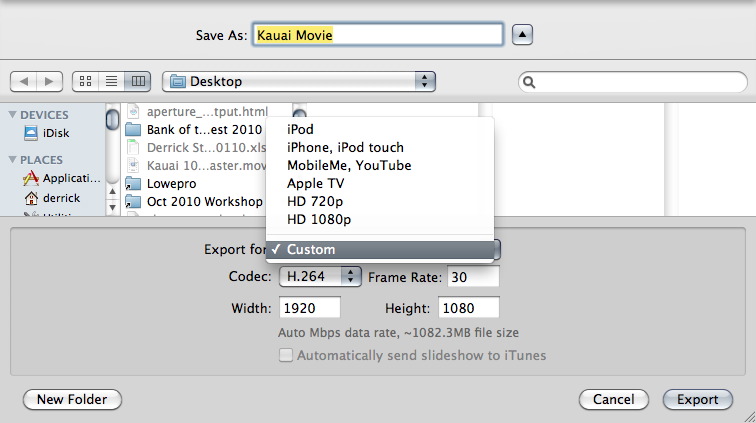
In Slideshow mode, when you click the Export button in the upper right corner of the Aperture interface, Apple provides you with a handful of presets for various devices such at the iPod, iPhone, Apple TV, YouTube, 720p, 1080p, and Custom. The first thing iPad users will notice is there's no preset for them. You might be tempted to choose the 720p preset, but unfortunately that preset doesn't work on the iPad. iTunes won't let you copy the movie to the iPad. Plus you're stuck with 30 fps for your frame rate, witch is a bummer if you captured your video in beautiful 24 fps.

You could go to the next preset up, "MobileMe/YouTube" for standard definition output (640x360 at 30 fps). But I can tell you right now, you probably won't like the results on an iPad, or even YouTube for that matter. The audio will sound fine, but my images were consistently soft.

I decided to go back to the drawing board to see what kind of vido output I could squeeze out of Aperture. After a few adjustments, I was able to improve my results substantially, but it required a three additional steps. Here's what I did:

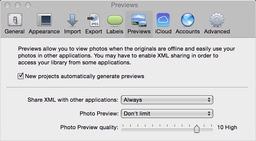
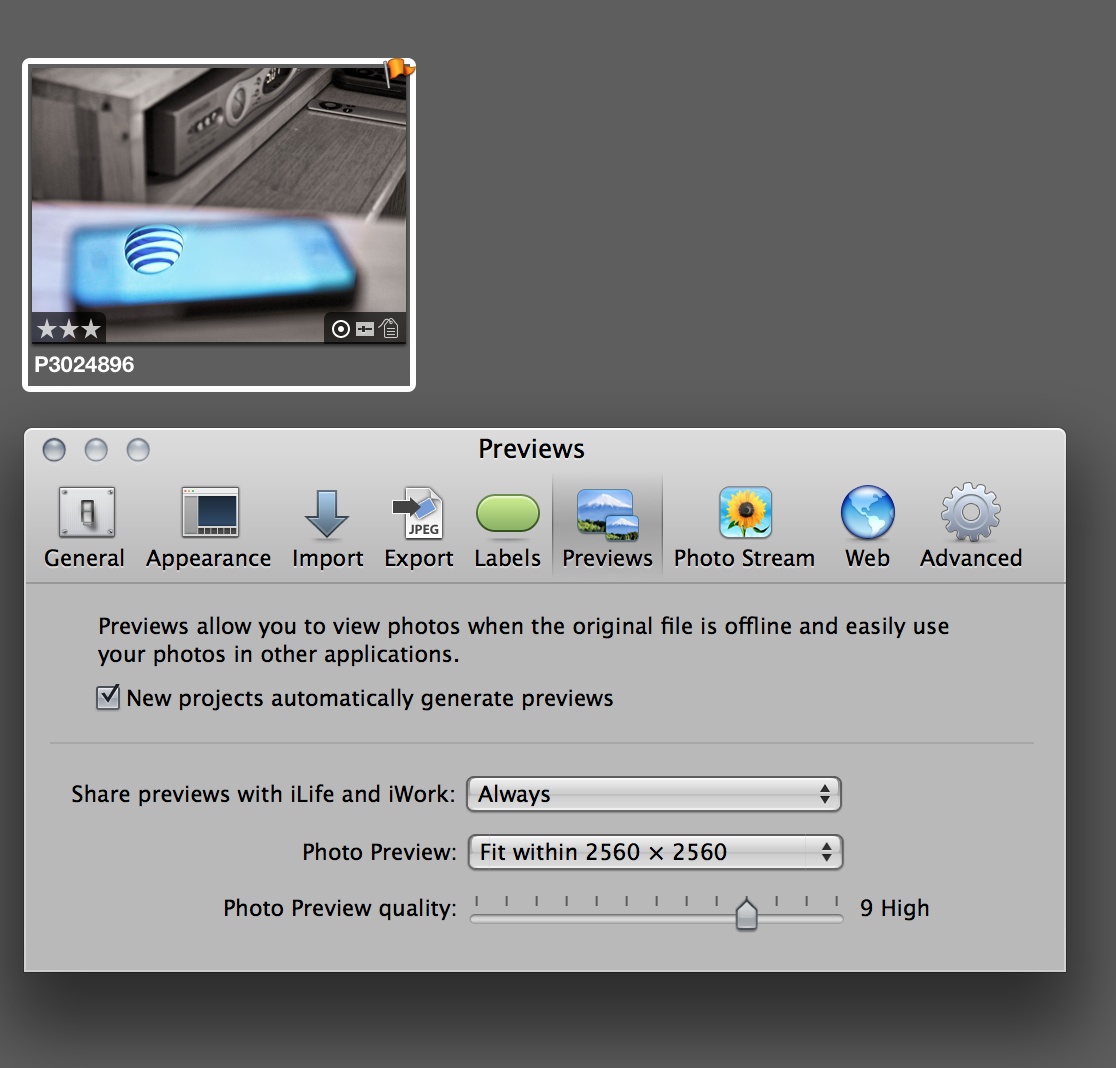
  • Create higher quality previews. Since I do use some Ken Burns effect in my shows, I decided that my default 1920x1920 previews might be compromising quality. Aperture uses your previews to create its slideshows. So I changed the Photo Preview (Preferences > Previews) to 2560x2560 at 9 quality. I then had to regenerate those previews at the new settings so Aperture could use them. I selected all of the thumbnails in my presentation, held down the Option key, and chose Photos > Generate Preview. This took a while for Aperture to regenerate the higher quality previews, so I took a break while the computer churned away.
  • Export Using the Custom Setting. My goal was to create a high quality master file at the frame rate I wanted. To do that, I needed to select Custom under the preset menu. I used H.264, 24 fps (to match the video in my presentation) at 1920x1080. Label this file "master" for both playback on your computer, but also for creating smaller versions for other devices.
  • Now Create Your iPad Version Using QuickTime 7. QuickTime 7 is in your Utilities folder. It gives you more flexibility for exporting than the QuickTime Player that is the default for Snow Leopard. After the movie is open, go to File > Export and choose Movie to QuickTime Movie from the popup menu. Click the Options button and make these selections -- Compression: H.264, Quality: High, Frame Rate: (your choice, I use 24 fps), Encoding Mode: Multi-Pass, Dimensions: 640x480 (or what ever you want), and Scale: Letterbox. For Sound, just make sure you go with AAC at whatever settings you want.

All of these steps take time to process, so make sure you have other tasks lined up to do elsewhere. Once your new movie is rendered, copy it to iTunes or upload to its online destination. On my iPad, I have both versions of the same movie: the Aperture preset for "MobileMe" and my multi-step version. The quality of my version is about twice as good.

More Aperture Tips and Techniques

To learn more about Aperture 3, check out my Aperture 3 Essential Training on Lynda.com. Also, take a look at our Aperture 3 Learning Center. Tons of free content about how to get the most out of Aperture.


twitter.jpg Follow me on Twitter

Quick Brushes in Aperture 3

| No Comments

Quick Brushes are a great addition to Aperture 3. They are located in the Adjustments popup menu, inside the Adjustments tab. Quick Brushes are exactly that, when you want to make a specific adjustment... quickly!

Some of my favorites include: Skin Smoothing, Polarize, Sharpen, and Definition. Being able to apply these types of adjustments to a specific area of the image without having to worry about creating masks is a wonderful enhancement to the post production workflow.

In this 7-minute video, I walk you through a typical Quick Brush scenario. You can see a larger version of the movie (better for this type of tutorial) by clicking through to YouTube or going to the Lynda.com Podcast page.

More Aperture Tips and Techniques

To learn more about Aperture 3, check out my Aperture 3 Essential Training on Lynda.com. Also, take a look at our Aperture 3 Learning Center. Tons of free content about how to get the most out of Aperture.


twitter.jpg Follow me on Twitter

aperture_icon.png

At the start of 2010, I switched from the Managed File approach in Aperture to Referenced Files. I think both systems are good. It depends on your particular situation as to which is best for you.

But, regardless of your choice, be sure to use the wonderful incremental backup system built into Aperture called the Vault. It's a simple one-click tool that saves all of your work to a separate hard drive. If you're using the Managed File approach, the Vault backs up your masters too. Referenced File users must back up masters separately. Either way, one thing I've discovered is: the work that I do to organize, edit, and add metadata to my images is as valuable to me as the pictures themselves.

During my week of coping with my Drobo problems, the bright spot was how I had previously organized my files and having the Vault to put everything back together on a separate drive.

In short, I moved my 2010 Referenced File structure to a hard drive that had an up-to-date 2010 Vault on it. I enabled a Vault Recovery on the drive, and in just a few minutes, Aperture put everything back together for me. All of my work was there, all of the Referenced Files were reconnected, and I was back in business.

Moral of the story for me is: the Aperture Vault is invaluable, regardless of which library system I'm using.

More Aperture Tips and Techniques

To learn more about Aperture 3, check out my Aperture 3 Essential Training on Lynda.com. Also, take a look at our Aperture 3 Learning Center. Tons of free content about how to get the most out of Aperture.


twitter.jpg Follow me on Twitter


Ever wonder which focus point your camera used on a particular shot? (Especially a photo where you thought the focus should be somewhere else.) In this short video I demonstrate how Aperture 3 can show you what your camera was thinking when it recorded a particular image. This works with most DSLRs that capture the focus metadata and save it. Take a look. It's handy.

More Aperture Tips and Techniques

To learn more about Aperture 3, check out my Aperture 3 Essential Training on Lynda.com. Also, take a look at our Aperture 3 Learning Center. Tons of free content about how to get the most out of Aperture.


twitter.jpg Follow me on Twitter


Turning on "highlight hot and cold areas" can help you fine tune exposure adjustments when putting the finishing touches on your pictures. In this 2 minute video, I show you how to use this technique effectively.

More Aperture Tips and Techniques

To learn more about Aperture 3, check out my Aperture 3 Essential Training on Lynda.com. Also, take a look at our Aperture 3 Learning Center. Tons of free content about how to get the most out of Aperture.


twitter.jpg Follow me on Twitter


The Heads Up Displays, often referred to as the HUDs, are some of the application's most distinctive features. By taking just a few minutes to learn their essential keystrokes and capabilities, you can speed up your workflow considerably.

In this 2:34 movie, I cover the Inspector, Keywords, and Lift and Stamp Heads Up Displays.


More Aperture Tips and Techniques

To learn more about Aperture 3, check out my Aperture 3 Essential Training on Lynda.com. Also, take a look at our Aperture 3 Learning Center. Tons of free content about how to get the most out of Aperture.


twitter.jpg Follow me on Twitter


What do you do when your referenced masters need to be moved to a different hard drive to maintain the functionality of your Aperture 3 library? At first this may seem like a daunting task, but with a little luck, the process will be easy and painless. I'll explain in this article.

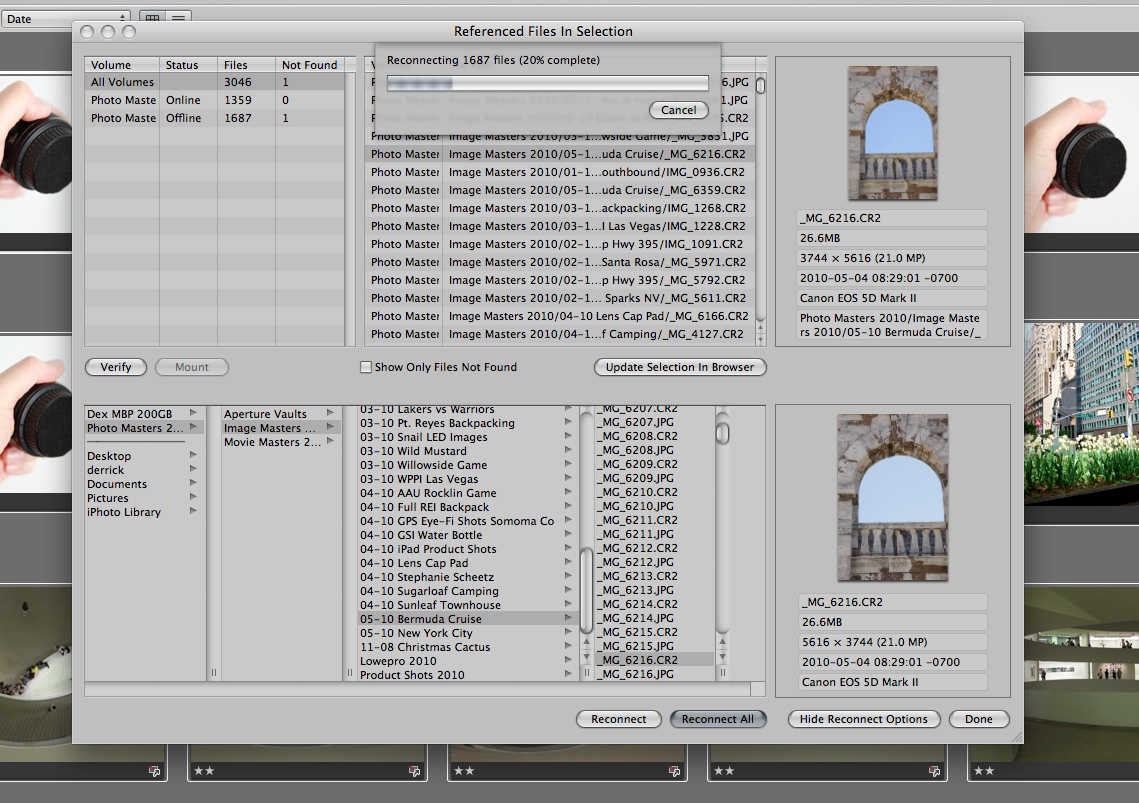
Reconnecting Masters in Aperture 3 Click on image for enlarged view.

I could tell something was amiss with my LaCie Rugged hard drive that contained the master Raw files for my Aperture library. Suddenly it started auto-disconnecting from the computer, even though the cable was intact. I switch from FireWire to USB (Ruggeds have triple interfaces), and at first that seemed to make it happy. But soon the odd behavior resumed. As I've learned in the past, when a hard drive begins to act up, you must move quickly.

I began the process of moving my nicely organized master files for my Aperture 3 library to a fresh drive. This took a few days to accomplish because the beleaguered drive keep conking out before I could finish the transition. But finally they were all there. Even though the file structure on the new drive, including the name for the drive itself, was identical to the ailing hard drive it was replacing, Aperture showed "missing masters" for all of my referenced files.

Fortunately, I could use the "Locate Referenced Files" command (under the File menu) to reestablish those connections. The process is simple:

Steps to Reconnect Master Files

  • Click on the Photos icon in the Library tab of the Aperture Inspector.

  • Click on one thumbnail, then choose Select All from the Edit menu.
  • Go to Locate Referenced Files under the File menu.
  • Establish one photo match between the top and bottom pane of the interface (as shown in the illustration). The top pane is your Aperture library. The bottom pane is the new hard drive with the master files.
  • Click on the Reconnect All button.
  • Take a short coffee break

When you return, all of your referenced master files will have been reunited with their counterparts in the Aperture library. At this point, I would also create a new Vault and back up your work.

More Aperture Tips and Techniques

To learn more about Aperture 3, check out my Aperture 3 Essential Training on Lynda.com. Also, take a look at our Aperture 3 Focus Section. Tons of free content about how to get the most out of Aperture.


twitter.jpg Follow me on Twitter

-


The magnification loupe in Aperture is more versatile than you may realize. In this short video, I show you a few of its tricks.

This video tutorial is from my Aperture 3 Essential Training on Lynda.com. There are more than 8 hours of hands on training there. Go check it out!

More Aperture Tips and Techniques

To learn more about Aperture 3, check out my Aperture 3 Essential Training on Lynda.com. Also, take a look at our Aperture 3 Learning Center. Tons of free content about how to get the most out of Aperture.


twitter.jpg Follow me on Twitter

Working in full screen mode enables you to dedicate every pixel of display resolution to your photography. Aperture 3 includes many major improvements to this functionality, so many in fact, that you may not be taking full advantage of its capabilities.

In this free 5-minute video tutorial from my Aperture 3 Essential Training on Lynda.com, I show you how to quickly master full screen mode to work more efficiently, and, more enjoyable.

More Aperture Tips and Techniques

To learn more about Aperture 3, check out my Aperture 3 Essential Training on Lynda.com. Also, take a look at our Aperture 3 Focus Section. Tons of free content about how to get the most out of Aperture.


twitter.jpg Follow me on Twitter

There is a fast and easy way to add captions to your images in Aperture 3. And I show you how in this video tutorial that's also part of my Aperture 3 Essential Training on Lynda.com.

I think the best time to add captions is right after you upload the images. That way the information that accompanies the images is still fresh in your mind.

More Aperture Tips and Techniques

To learn more about Aperture 3, check out my Aperture 3 Essential Training on Lynda.com. Also, take a look at our Aperture 3 Focus Section. Tons of free content about how to get the most out of Aperture.


twitter.jpg Follow me on Twitter

Aperture 3 not only lets you integrate your still images and movies into professional looking presentations, it also allows you to export your work to a variety of video formats. In this video tutorial from my Aperture 3 Essential Training on Lynda.com, I show you how powerful slideshow authoring is in Aperture.

More Aperture Tips and Techniques

To learn more about Aperture 3, check out my Aperture 3 Essential Training on Lynda.com. Also, take a look at our Aperture 3 Focus Section. Tons of free content about how to get the most out of Aperture.


twitter.jpg Follow me on Twitter

One of the few times I once had to leave Aperture for Photoshop was to retouch portraits. Well, no more! Thanks to the new Skin Smoothing Quick Brush (along with the existing Retouch brush), I can take care of simple retouching right here in Aperture 3. And I show you how in this video tutorial that's also part of my Aperture 3 Essential Training on Lynda.com.

The big advantage to not having to roundtrip to Photoshop from Aperture is file size management. All of the adjustments you saw in the video are just kilobytes of metadata. If I were to roundtrip, then the file that comes back from Photoshop is many times bigger than the original Raw file we worked on.
More Aperture Tips and Techniques

To learn more about Aperture 3, check out my Aperture 3 Essential Training on Lynda.com. Also, take a look at our Aperture 3 Focus Section. Tons of free content about how to get the most out of Aperture.


twitter.jpg Follow me on Twitter


The addition of Curves adjustment to Aperture 3 gives us powerful tonal and color correction. In this 9:00 minute video that's part of my Aperture 3 Essential Training on Lynda.com, I show you how to get started with Curves in Aperture 3.

More Aperture Tips and Techniques

To learn more about Aperture 3, check out my Aperture 3 Essential Training on Lynda.com. Also, take a look at our Aperture 3 Focus Section. Tons of free content about how to get the most out of Aperture.


twitter.jpg Follow me on Twitter


In a recent article for Macworld Magazine titled How to move from iPhoto '09 to Aperture 3, I describe how to easily transition your images and work from an iPhoto library to Aperture 3. And because the two applications talk to each other so well, you even have the option of sharing the same library of images with both. If you use iPhoto now, I encourage you to read the tutorial.

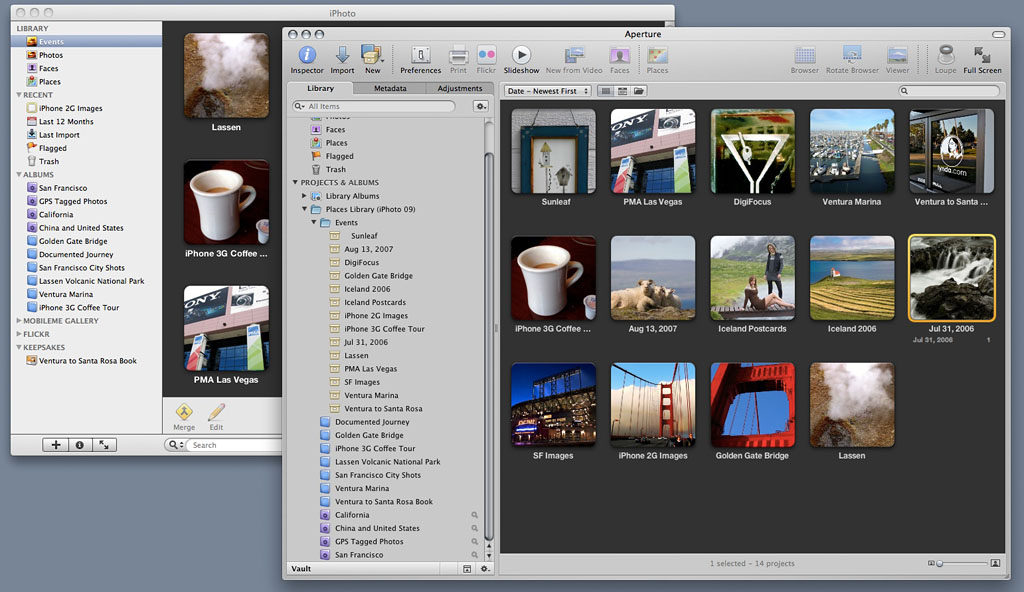
iPhoto 09 and Aperture 3 Libraries after Import to Aperture

Comparison of iPhoto 09 and Aperture 3 libraries after import from iPhoto to Aperture. Click on image for larger view.

OK, But the Real Question Is...

As often the case, showing someone how to do something invariably brings up the question: "But why should I do this in the first place?" It's a good question.

The answer depends on what you need to do with your photographs after you click the shutter. If you're a casual shooter who captures less than a thousand images a year, and shares them primarily through email, Flickr, or the occasional slideshow, then iPhoto is a good application for you. It's easy to understand, has the basic tools your need, and it is included on your Mac when you buy it.

But if you consider yourself an amateur or pro photographer, iPhoto has some real shortcomings. One area that I find particularly frustrating is how it handles metadata. I can't add standard IPTC fields such as author, copyright, etc. And keywording is less than robust. I also think image editing in iPhoto is just too limited for most passionate photographers. Yes, you get the basic tools, but really, anything beyond simple luminance and color adjustments just isn't there. And finally, iPhoto lacks the "Project based system" of organization that's the heart of Aperture 3. Having these flexible containers to organize your work is important for people who take a lot of photos.

This is not a knock on iPhoto. It does what it does well. But if you're getting better at your photography and want to see how far you can take your work, Aperture 3 is a better tool. You have control over your metadata, your image editing, organization, and output. For many photographers, the tools inside of Aperture are all they need. And most shooters don't even leverage the totality of what's available.

Here's the thing though: you're going to need a current Mac with a good graphics card and 4 GBs or RAM, plus at least one external hard drive if you're going to have a good Aperture experience. I'm using a 17" 2.5 GHz Intel Core 2 Duo MacBook Pro with 4 GBs of RAM, and doing just fine with Aperture 3. Don't even try this with an early generation Intel MacBook with 2 GBs or RAM. You'll hate what happens.

The bottom line is, if you're feeling the limitations of iPhoto, and you like Apple's approach to software, then I would consider the upgrade to Aperture 3. It will give you the tools you need to take your photography to the next level.

PS: You may wonder why I didn't include Lightroom 3, Photoshop CS5, or other terrific software in this post. The main reason is, I'm talking about moving from iPhoto to the next level. In that case, Aperture is my recommendation. Other scenarios may lead to different applications.

More Aperture Tips and Techniques

To learn more about Aperture 3, check out my Aperture 3 Essential Training on Lynda.com. Also, take a look at our Aperture 3 Focus Section. Tons of free content about how to get the most out of Aperture.


twitter.jpg Follow me on Twitter


Aperture 3 has a nifty feature that allows you to enable an overlay that shows focus points used by the camera when recording the picture. It also highlights which point was active. Granted, this feature could be viewed as a novelty, but I do find myself checking it.

Focus Points in Aperture 3

Click on image to see full size version.

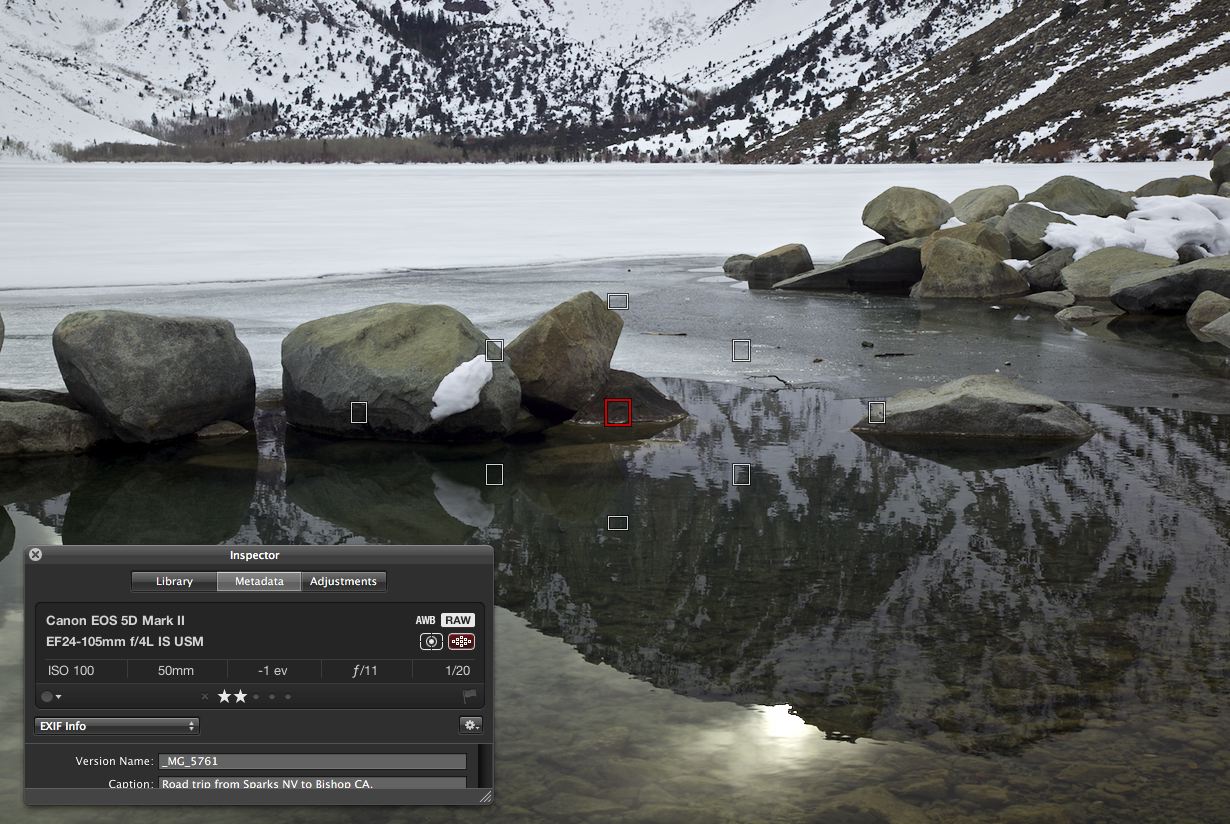
In this shot, for example, I see all the focus points for the Canon 5D Mark II with the center point outlined in red. That was the point that I used for focusing. What you don't see, however, is where I directed that point when I composed the shot. The overlay pattern is always in the same place, as it appears when I look through the camera's viewfinder. Since I often use focus lock, then recompose, the overlay doesn't show me the actual object that I focused on.
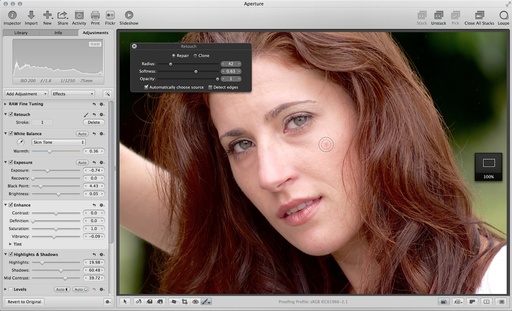
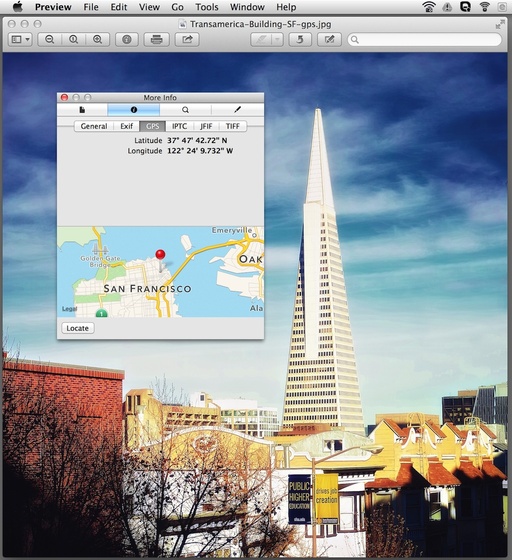
In order for this to work at all, your camera needs to save the autofocus metadata to EXIF, and of course, it has to be compatible with Aperture 3. I've also learned through testing, that if you use the referenced file approach for library management, your masters have to be available to activate the focus points overlay.

To enable this feature, just go to View > Show Focus Points, or click on the icon in the metadata inspector (as illustrated in the photo). The keyboard shortcut is Option-F.

I think Show Focus Points is most handy when you're trying to analyze what went wrong in a misfocused shot. If your subject is on the right, and the red focus point is on the left... well, that might be a clue.

More Aperture Tips and Techniques

To learn more about Aperture 3, check out my Aperture 3 Essential Training on Lynda.com. Also, take a look at our Aperture 3 Focus Section. Tons of free content about how to get the most out of Aperture.

twitter.jpg Follow me on Twitter


auto_curves_buttons.jpg

When Apple added the Curves adjustment brick to Aperture 3, they pulled out all of the stops. In addition to the typical "set a point and drag it" curves dialog, there are two Auto adjustments -- Auto Curves Combined (left button) and Auto Curves Separate (right button). "Combined" makes an auto adjustment based on total luminance without affecting color. "Separate," the flavor that interests me more, also corrects color because Aperture individually evaluates and sets curves for each channel: red, green, and blue. You can see a before and after on the images below (click to enlarge).

Before Curves Adjustment

Master file before Auto Curves Separate adjustment in Aperture 3

Auto Curves Separate Adjustment

Image after Auto Curves Separate adjustment in Aperture 3

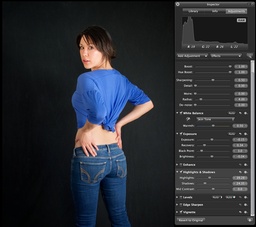
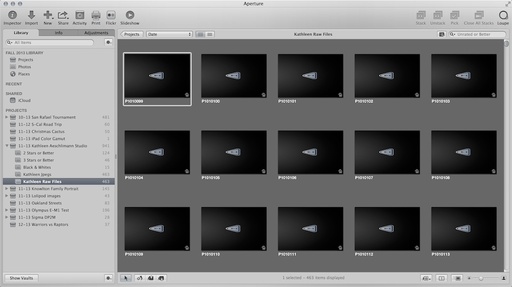
For my tastes, I get the best results from this useful tool by going to the Advanced tab in Aperture 3 Preferences, and setting the "Auto adjust Black Clip" and "Auto adjust White Clip" to 0%.

aperture_preferences.jpg

This prevents overly contrasty auto adjustments that have to be manually corrected later. I'm not implying that Auto Curves Separate is always the final solution. But for many images, it's the only global exposure and color correction you many need. It's worth a close look.
More Aperture Tips and Techniques

To learn more about Aperture 3, check out my Aperture 3 Essential Training on Lynda.com. Also, take a look at our Aperture 3 Focus Section. Tons of free content about how to get the most out of Aperture.

twitter.jpg Follow me on Twitter


There are many reasons why I shoot full size HD video with my Canon 5D Mark II, even if the intended output is for YouTube or another web service. Just like in still photography, I like to have a high resolution master that I can go back to if another opportunity presents itself, such as making a DVD.
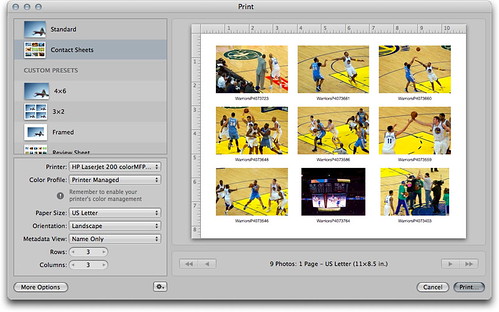
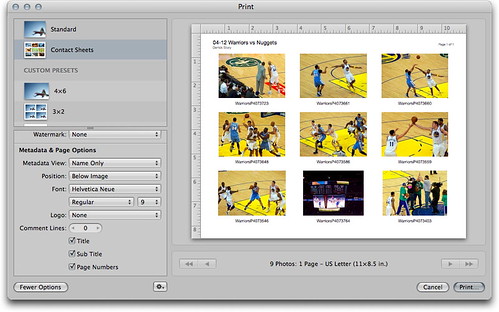
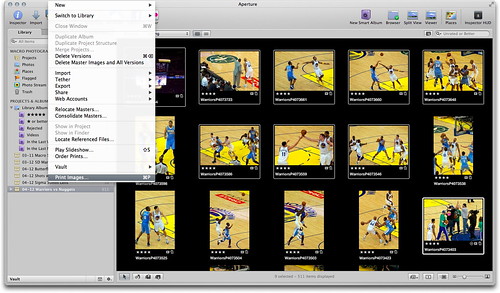
A second reason, and one that I don't think many photographers take advantage of, is the ability to grab a single frame from the video and use it as a still photograph. When you shoot 1080p HD video, those frame grabs are 1920x1080, or the equivalent of a 2-megapixel photograph. And they look great.

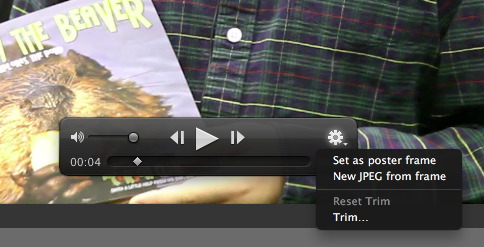
The technique is easy, depending on the software you're using. In Aperture 3, all you have to do is scrub to the frame you want. Click on the gear menu, and choose "New Jpeg from Frame."

Still Frame Grab in Aperture 3

Aperture creates the image and brings it forward in the browser. At that point, I recommend clicking on the Metadata tab in the Inspector and giving your frame grab a unique file name. Otherwise, it can be confusing while you're browsing thumbnails as to which are movies and which are stills.

These high quality photos can be used for web pages, Flickr galleries, and even 4x6 prints. And capturing the decisive moment is easy... just scrub to it!

More Aperture Tips and Techniques

To learn more about Aperture 3, check out my Aperture 3 Essential Training on Lynda.com. Also, take a look at our Aperture 3 Focus Section. Tons of free content about how to get the most out of Aperture.


twitter.jpg Follow me on Twitter


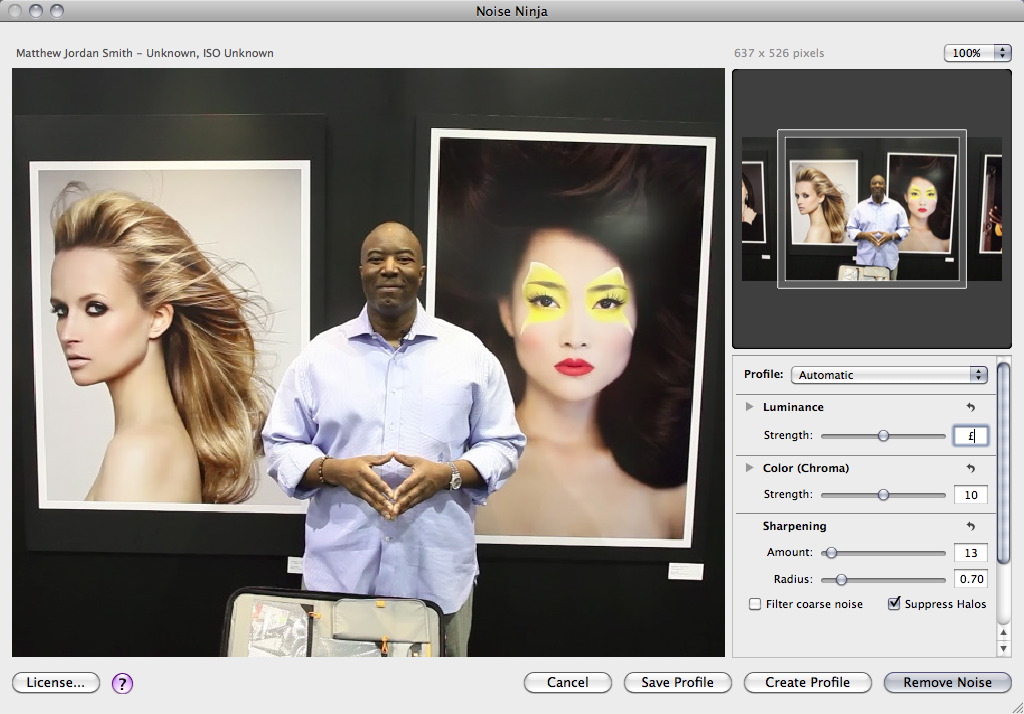
Happy to see that PictureCode has updated their excellent Noise Ninja plug-in for Aperture 3 that runs in 64-bit mode.

Noise Ninja 64-bit for Aperture 3

I just downloaded and tested Noise Ninja 2.0.7, and the entire process went quickly and smoothly. Once you install it, just relaunch Aperture 3 and the new version will appear in your "Edit With" menu. Simple and works great. One down, a few more to go!
More Aperture Tips and Techniques

To learn more about Aperture 3, check out my Aperture 3 Essential Training on Lynda.com. Also, take a look at our Aperture 3 Focus Section. Tons of free content about how to get the most out of Aperture.


twitter.jpg Follow me on Twitter


In my previous post, Aperture 3.0.1 Fixes a Lot, but Not All, I raised the issue that the IPTC metadata I was entering in Aperture 3 was not appearing in the Photoshop CS4 "File Info" box after export from Aperture. Initially, I thought this was a bug in Aperture.

But after a little digging, I discovered that Bridge CS4 was displaying my metadata properly. What gives? Why would Bridge show it and Photoshop not?

It appears that we're in the middle of a standards transition. Looks like Aperture 3 is embracing the current specification, as is Bridge CS4. Photoshop CS4 seems to be following an older approach to displaying metadata.

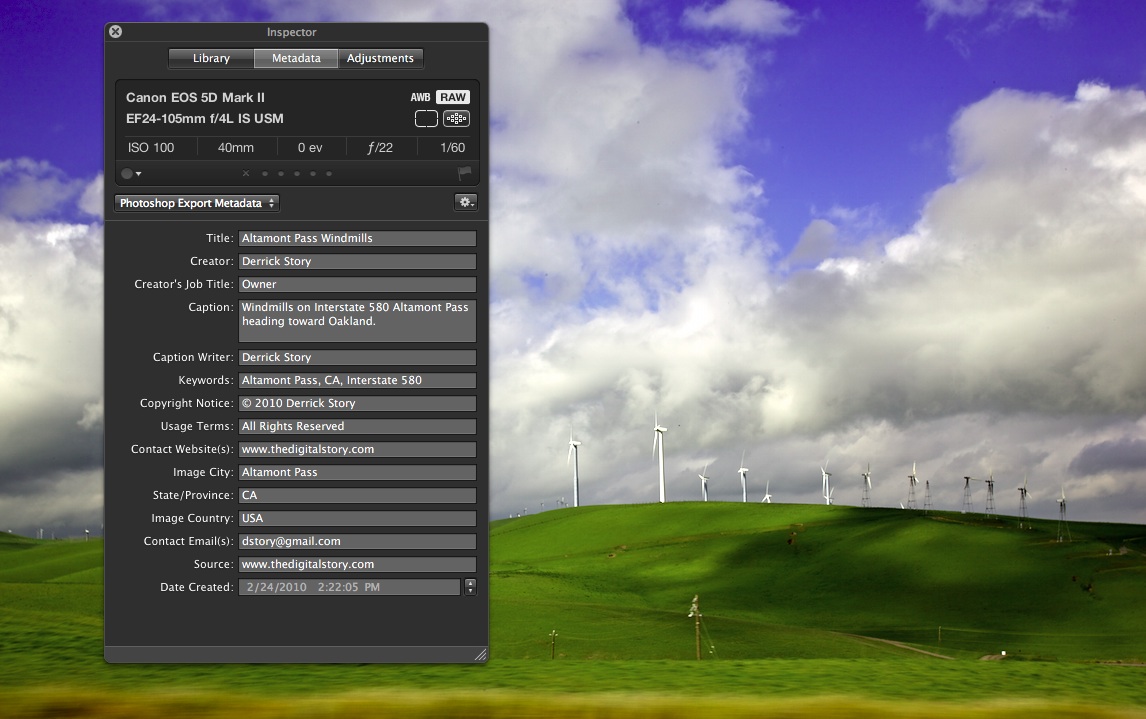
Now if you're feeling the urge to get riled up and start pointing fingers, please stay calm. The point of this post is to show Aperture 3 users an easy way to have their metadata appear correctly in Photoshop CS4. Let's start with how I entered the IPTC metadata in Aperture 3 using a custom template (click on image to enlarge view):

Data in Aperture 3

If you haven't created a custom metadata template in Aperture 3, it's easy. Just choose "Edit" from the popup metadata menu in the Metadata view.

I then exported a Jpeg as I normally would. But instead of opening it directly in Photoshop, I opened it in Bridge CS4 first. Nearly all of my IPTC data is there. Great! If I want this same data to appear in Photoshop, all I have to do is edit any of the fields. A one character edit will work, but I filled in the missing "Copyright Info URL" field. Then click on any other thumbnail, and Bridge will ask you if you want the metadata updated for the picture you were perviously viewing. Yes you do! So, click "Apply."

bridge_metadata.jpg

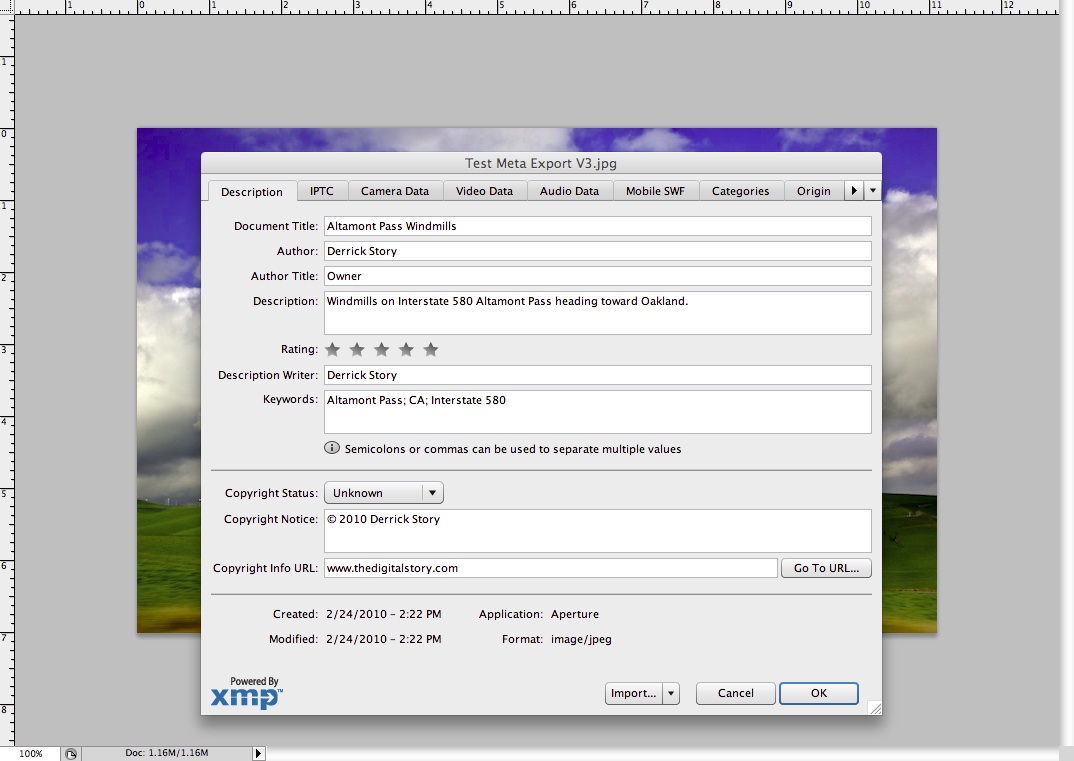
You're done! The metadata for the image has been updated with your Aperture IPTC fields. If you want to check your work, open the image in Photoshop, then go to File > File Info (click on image to enlarge):

Metadata Appears in Photoshop CS4

Yes, this is a workaround that involves an extra step. But it's easier than having to reenter all of your metadata in Photoshop. And it keeps your information consistent.

The bottom line is that Aperture 3 is exporting your metadata. And as other applications update to the current standards, this workaround should soon go away.

More Aperture Tips and Techniques

To learn more about Aperture 3, check out my Aperture 3 Essential Training on Lynda.com. Also, take a look at our Aperture 3 Focus Section. Tons of free content about how to get the most out of Aperture.


twitter.jpg Follow me on Twitter


Aperture 3 users can download the 3.0.1 update that improves 15 called-out features including: upgrading older libraries, importing photos, memory management, face recognition processing, roundtripping, accessing libraries on a network volume, Places, and more. A lot of stuff! But it still doesn't address a couple of things on my list. One complaint I have is that exporting is slower on my MBP 2.5 GHz than it was before. But the problem that drives me crazy is that my IPTC metadata doesn't display properly in Photoshop after an export from Aperture.

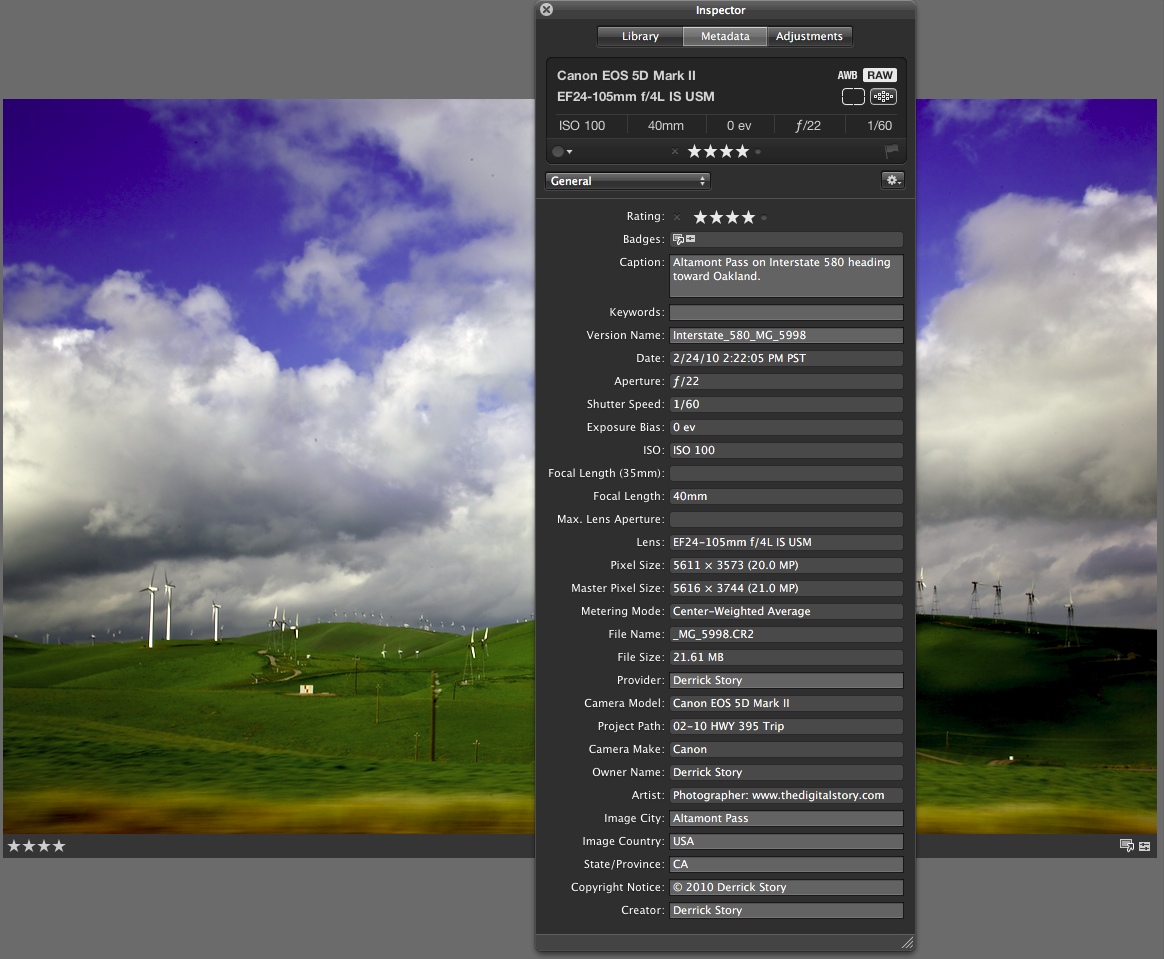
Here's the metadata that I entered in Aperture 3.0.1 (click on picture to enlarge):

Metadata Entered into Aperture 3.1

And here's what is displayed in Photoshop CS4 after I've exported from Aperture with the metadata box checked: (click to enlarge):

No Metadata in Photoshop CS4

Notice all of the blank fields...

So I'm happy to see an Aperture 3 update so quickly after its release. And I'm looking forward to future updates that will smooth things out even more... especially the metadata export.

More Aperture Tips and Techniques

To learn more about Aperture 3, check out my Aperture 3 Essential Training on Lynda.com. Also, take a look at our Aperture 3 Focus Section. Tons of free content about how to get the most out of Aperture.


twitter.jpg Follow me on Twitter

-


As a Canon S90 shooter, I was thrilled to see this top notch compact listed in Aperture 3's Raw support list. I did a few preliminary tests, and I liked what I saw in Aperture. But then I started to wonder: How does Aperture's Raw processing compare to Canon's Digital Photo Professional? After all, there's lots going on behind the scenes here, including lens correction.


Top image processed in Aperture 3, bottom picture in Canon's Digital Photo Professional. Click on image to enlarge.


You may recall that I ran a similar test comparing DPP processing to ACR 5.6. In this current test, I tried to take advantage of the unique tools in each application to create the best image possible. I didn't add any sharpening after sampling down, as I normally would, because I wanted to keep the playing field level.

This shot was captured handheld at 28mm, f/5.6, ISO 100. I recorded the photo in Sparks, NV.

Aperture 3 Processing

The top image is processed in Aperture 3. I used the standard Aperture 3 Raw profile for the S90. I then used the following adjustments: Definition, Vibrancy, Levels, Edge Sharpen, and Vignette. You'll notice some distortion in the shot, best illustrated by the orange poll on the left side. Overall, I really liked how Aperture processed this image. It would be nice to have a tool to adjust the distortion in Aperture, but easier asked than programmed, right?

DPP Processing

The second image was processed in Canon's Digital Photo Professional. There aren't as many luminance and color controls as in Aperture, but I did have the Lens Aberration Correction control to counter some of the distortion in the image. Interestingly enough, DPP did not correct the distortion as part of the standard Raw processing. I had to enable the Aberration Correction control to straighten out the pole. And it was a bit odd having the Distortion slider hidden behind the Tune button for Aberration Correction. It does work nicely, however.

Bottom Line

Overall, I really like having all of the various image tools that are available in Aperture 3. But for certain S90 photos that require distortion control, I'll probably open them in DPP first, correct them, then save out as a Tiff for finishing off in Aperture 3 or Photoshop CS4. For everything else, however, I'm going to stick with Aperture 3.

More Aperture Tips and Techniques

To learn more about Aperture 3, check out my Aperture 3 Essential Training on Lynda.com. Also, take a look at our Aperture 3 Focus Section. Tons of free content about how to get the most out of Aperture.

More Articles About the Canon S90

Five Lesser Known (but very cool) Features on the Canon S90

Canon S90 Raw Processing Comparison: DPP vs ACR 5.6 RC

DigiScoping Pro Basketball with the Canon S90

Did Canon Really Improve Image Noise with the PowerShot S90?

"Compacts for Serious Shooters" - Digital Photography Podcast 201

Is the Canon S90 the New G11?


twitter.jpg Follow me on Twitter

-


cs4_video_adj.jpg

Yes you can trim video in Aperture 3, but that's about it. What I needed was a tool for color and luminance adjustments. First I tried roundtripping to iMovie. Quite honestly, that was a disaster. Let's just say that I don't think Aperture and iMovie should see each other any more. I tried to apply filters on export in QuickTime 7. Just too clunky. I even explored some of the free video editors on the Web. Now I know why they are free.

Then it dawned on me. I have Photoshop CS4... Extended. Up until now, having the Extended version didn't mean much to me. I'm not a scientist and I haven't delved into 3D yet. But I can import video, add adjustment layers to it, then render it out using the standard QuickTime export dialog box. This is exactly what I needed.

You can pick any frame in your video to view while you make your adjustments. I worked in layers, just as I would normally. But you don't have to. Then simply go to File > Export > Render Video, and save out the adjusted version. Your entire movie will have the luminance and color correction applied.

I still haven't perfected my workflow for managing videos in Aperture 3. Now that I have Photoshop CS4 for adjusting the movies, I might work like this:

  • Download video from camera to external hard drive that I use for all of my referenced files.
  • If they don't need any luminance or color adjustments, import them into Aperture as referenced files.
  • If they do need adjustment, correct in Photoshop CS4, render out, then import the corrected movies into Aperture 3 as referenced files.
  • Apply metadata, organize, etc. in Aperture 3.

At that point, I would probably copy the uncorrected master movies on to my Drobo and remove them from my referenced hard drive. I'm sure I'll tweak this workflow some more. But for now, I have deadlines to meet.

You might be wondering if you can roundtrip to Photoshop CS4 by choosing it for videos in your Aperture 3 preferences. Well, yes and no. Aperture does send the video to Photoshop and it opens correctly. But, you can't use the Save command to roundtrip back. So you have to Export > Render and new file anyway. So, in my opinion, this workflow isn't ready for primetime yet. And from what I've read, you can use Photoshop CS3 Extended for this, but you can't listen to the audio. But it's still preserved.

All of that being said, I am thrilled to have a way to adjust my videos while still using Aperture 3 as the manager. I'll report more as I discover it.

More Aperture Tips and Techniques

To learn more about Aperture 3, check out my Aperture 3 Essential Training on Lynda.com. Also, take a look at our Aperture 3 Focus Section. Tons of free content about how to get the most out of Aperture.


twitter.jpg Follow me on Twitter

-


After 2 years of waiting, we have Aperture 3. And it's beautiful! In this podcast I cover the highlights of this new release, then have 10 tips to help you get started.

Listen to the Podcast

You can also download the podcast here (30 minutes). Or better yet, subscribe to the podcast in iTunes.

More Aperture Tips and Techniques

To learn more about Aperture 3, check out my Aperture 3 Essential Training on Lynda.com. Also, take a look at our Aperture 3 Focus Section. Tons of free content about how to get the most out of Aperture.

Monthly Photo Assignment

Red is the Feb. 2010 Photo Assignment. You can read more about how to submit on our Member Participation page. Deadline for entry is Feb. 28, 2010.

TDS Workshops Update

The TDS Hot Air Balloon Photography Workshop in June 2010 has lost its hot air. The organizers cancelled the event for this year. Ack! So I'm working on a different event in the same time slot. Stay tuned for more information. If you'd like to get on the waiting list for upcoming workshops, please send me email with the subject line: "TDS Workshops." Those virtual camera club members who are on the waiting list get first opportunity to register for newly announced workshops. Attendance is limited to 6 for each TDS Workshop to ensure a personalized experience.

More Ways to Participate

Want to share photos and talk with other members in our virtual camera club? Check out our Flickr Public Group. It's a blast!


twitter.jpg Follow me on Twitter

-


Podcast Sponsors

Red River Paper -- Try the $7.99 Sample Kit.

Make Your Photos Sizzle with Color! -- SizzlPix is like High Definition TV for your photography.


Technorati Tags: , , , , ,

Switching Aperture to 32-Bit Mode

| 21 Comments
aperture_32bit.jpg

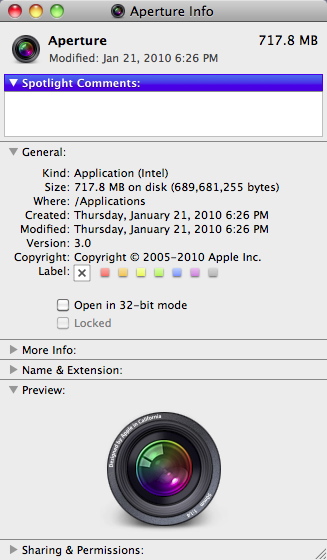
If you have to switch to 32-bit mode in Aperture to run your plug-ins, which are all 32-bits, you can do so via the Get Info box (File > Get Info). With the application closed, check the "Open in 32-bit mode" box, then relaunch Aperture. All of your current Aperture plug-ins should be available to you then.

More Aperture Tips and Techniques

To learn more about Aperture 3, check out my Aperture 3 Essential Training on Lynda.com. Also, take a look at our Aperture 3 Focus Section. Tons of free content about how to get the most out of Aperture.


twitter.jpg Follow me on Twitter


Full Screen Browser in Aperture 3

| 3 Comments
a3_full_screen_mode.jpg

One of the pleasant surprises in Aperture 3 is the new Full Screen Browser. To access it from the normal browser view in Aperture, all you have to do is hit the F key. This lets you dedicate every inch of your monitor to your pictures. This feature is a blessing while I'm using my 17" MBP on the road.

If you want to edit one of the images, just double-click on the thumbnail in the Browser to bring it to full screen, then hit the H key to bring up the Adjustments Inspector. At this point, you can work as normal. Another nice touch is, if you hold down the Shift key while moving any of the sliders in the Adjustments Inspector, the Inspector interface disappears except for the slider you're using. Again, this lets you see more of your image with less of the interface.

When you're done editing your picture, just double click it to return to the full screen Browser. Hit the F key to return to the normal Aperture 3 interface. Very nice.

Oh, and one other thing. Those images in the illustration... they are Raw files from my Canon S90. Aperture 3 decodes them wonderfully. I've also talked with LX3 shooters, and they too can decode their Raw files in A3.

More Aperture Tips and Techniques

To learn more about Aperture 3, check out my Aperture 3 Essential Training on Lynda.com. Also, take a look at our Aperture 3 Focus Section. Tons of free content about how to get the most out of Aperture.


twitter.jpg Follow me on Twitter


When Apple enabled video trimming in Aperture 3, my guess is they wanted to enhance the Slideshow module. And that they did. You can now combine still images, video, and separate audio tracks to create beautiful productions.

After playing with this module for a few hours, however, my message to Apple is that I would prefer even more video functionality (yeah, I know). But quite honestly, the task I often have at hand is to shoot video, cut it, then upload to YouTube -- as quickly as possible. Incorporating still images and soundtracks are fun, but not the normal project.

This short movie, "Mission St., SF" was captured with a Canon T1i, then imported directly into Aperture 3 for production and export. Click through to YouTube for the HD version.

So if you have your hopes up that there's a mini Final Cut Pro inside of Aperture, you might want to lower your expectations. The video tools are extremely basic. What you can do, however, is useful.

  • Add and manage DSLR video clips in the Aperture library. And thanks to the improved Import dialog box, you can choose which types of files you want to upload.
  • Select the video clips you want to work with, then go to New > Slideshow where you can organize their sequence, add a soundtrack, add title slides, and choose some basic parameters for your presentation.
  • Trim video clips by double clicking on them. This is very important because the one thing that all videos need is editing.
  • Export your production using one of the 5 presets or custom export settings. I used the HD 720 preset for this short movie.

I know it seems odd to use the Slideshow module for your video editing. But I think that's due to Apple's original concept for video management in Aperture. I wouldn't be surprised if up the road we see a dedicated module for handling movies. In the meantime, however, this is a huge addition to Aperture 3. And it will make my life more efficient and productive.

More Aperture Tips and Techniques

To learn more about Aperture 3, check out my Aperture 3 Essential Training on Lynda.com. Also, take a look at our Aperture 3 Focus Section. Tons of free content about how to get the most out of Aperture.


twitter.jpg Follow me on Twitter


Aperture 3 Hits the Streets

| 18 Comments
Apple announces the long awaited Aperture 3 professional photo management application with 200 new features. You can read a nice overview on Macworld, then spend some time on the Apple site that does a good job of showing off the new feature set.

Over the coming weeks, we'll be delving into all the fun nooks and crannies here, including managing HD video, audio, new image editing presets, and much more. Stay tuned!

More Aperture Tips and Techniques

To learn more about Aperture 3, check out my Aperture 3 Essential Training on Lynda.com. Also, take a look at our Aperture 3 Focus Section. Tons of free content about how to get the most out of Aperture.


twitter.jpg Follow me on Twitter


As I look into my crystal ball for 2010, I predict we'll have new versions of many of the heavy-hitter software applications that we depend on for photo management and processing. How those new releases match up with the way we shoot will impact people on both sides of the equation.

Sometime during 2010, my guess is that we'll see Photoshop CS5 with updated versions of Adobe Camera Raw and Bridge. Lightroom 3 will probably come out of beta and on to the shelves. And Aperture 3 will most likely debut too. The big question is, how will those new applications match up to our evolving photography?

For example, I want one application that has Raw support for all of my cameras. I want to be able to catalog my video as well as my still pictures in the same environment. And I want integration with the other applications and services I use.

What's on your application wish list for 2010? If you have specifics that are important to you, please share them in the comments below.

Happy New Year! (It's going to be an interesting one...)


twitter.jpg Follow me on Twitter

-


It's Time for Aperture 3

| 53 Comments
aperture_icon.png

On Feb. 12, 2008, Apple released Aperture 2. Now, more than a year and a half later, it's time for Aperture 3. Here's why I think we'll see the next generation by the end of 2009.

  • iLife 09, which was a massive undertaking by Apple, is now signed, sealed, and delivered. There are shared resources within Apple for iPhoto and Aperture, so it's difficult for them to release both products within a short time span.
  • Snow Leopard is already at 10.6.1. You can bet that Aperture 3 is going to leverage technologies within the latest operating system. So, Snow Leopard had to hit the streets before Aperture 3. Now that it's on the prowl, the cage door is swinging open.
  • Lightroom 3 is around the corner. Chances are good that we'll see Lightroom 3 in the not-too-distant future. You just know that Apple wants to have Aperture 3 out first.
  • The grumble effect. Once we get deep into the product cycle, users start grumbling about an update. Whether it's coincidence or not, when the complaining reaches a certain pitch, we usually see a release. Not sure if this is chicken or egg, but the grumble effect is in force right now.

So, assuming that I'm right and we'll see Aperture 3 by the end of the year, what's it going to have? I wish I knew. My guess is that we'll see some of the technologies introduced in iPhoto '09, plus some new things that we aren't even imagining right now. I'm assuming we'll have more localized edits, better speed, and continued integration with other Apple technologies. I'm confident that it will be a solid release.

And I can't wait to try it.

More Aperture Tips and Techniques

To learn more about Aperture 3, check out my Aperture 3 Essential Training on Lynda.com. Also, take a look at our Aperture 3 Focus Section. Tons of free content about how to get the most out of Aperture.


twitter.jpg Follow me on Twitter

-